Key takeaways
- Give the HTPC a static IP first, so your phone and TV always find it at the same address.
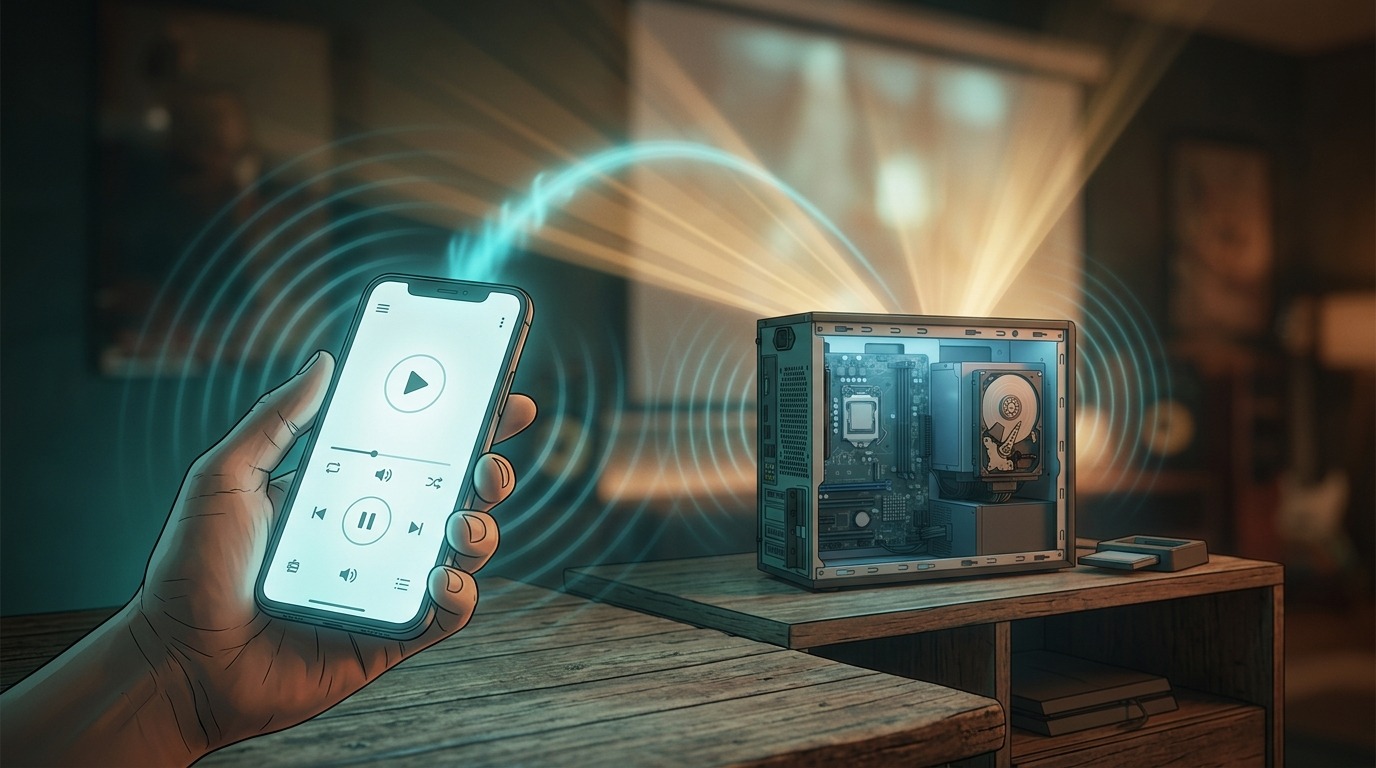
- Turn on Kodi’s web server to use the free Kore remote app — and always set a password.
- Enable UPnP/DLNA and your smart TV’s media app will see your Kodi library over the network.
- UPnP discovery runs over UDP — that’s the “UDP thing” people remember needing to switch on.
- A quick SMB share lets you copy files to the HTPC from your main PC.
This guide is part of the Build a budget media center PC series. Once your HTPC plays movies, the next win is not having to walk over to it — control it from your phone, browse its library on your TV, and drop new files onto it from your main PC. It all starts with a fixed address.
1. Give the HTPC a static IP
First, remote apps and TVs need to find your HTPC at a predictable address. If it’s on DHCP, that address can change, and your remote suddenly can’t connect. Two ways to pin it down:
In Windows: Settings → Network & internet → Ethernet → IP assignment → Edit → Manual → turn on IPv4, then fill in:
- IP address: something outside your router’s DHCP range, e.g. 192.168.1.50
- Subnet mask: 255.255.255.0
- Gateway: your router’s IP, e.g. 192.168.1.1
- DNS: your router’s IP, or 1.1.1.1 / 8.8.8.8
Don’t skip the gateway and DNS. Setting only an IP address is the classic mistake — the machine gets an address but no route out, and your internet dies. Fill in all four fields and it works.
Cleaner alternative: leave Windows on automatic and create a DHCP reservation in your router instead (bind the HTPC’s MAC address to a fixed IP). Then it’s all managed in one place with no risk of address clashes.
2. Control Kodi from your phone with Kore
Kore is the official Kodi remote app for Android. To let it in, switch on Kodi’s web server.
On the HTPC (in Kodi):
- Settings (gear) → Services → Control.
- Turn on Allow remote control via HTTP. Note the Port — 8080 by default.
- Turn on Require authentication, keep the Username as “kodi”, and set a real password.
- Turn on Allow remote control from applications on this system and …on other systems.
- Optional, for auto-discovery: Settings → Services → General → Announce services to other systems. (On Windows this needs Apple Bonjour installed; if Kore can’t find Kodi automatically, just add it by hand below.)
Security — don’t skip this: never run the Kodi web server without a password, and never expose it to the internet. The remote interface is powerful enough to run commands on the machine, so keep it on your home network only, behind a password.
In the Kore app: install it, tap Add Media Center, and let it scan. If your Kodi shows up, pick it. If not, tap Next for manual setup: Name “Kodi”, Host = your static IP, Port 8080, Username kodi, Password your password → Test → done. You can now browse and play from your phone.
Kore won’t connect? Common fixes
If Kore can’t reach Kodi, it’s almost always one of these:
- Web server is off: “Allow remote control via HTTP” isn’t enabled in Kodi (Settings → Services → Control). Nothing works until it is.
- Wrong IP or port: the Host in Kore must be the HTPC’s current IP, and the Port must match (8080 by default). A static IP stops this breaking later.
- Password mismatch: if “Require authentication” is on, the username (kodi) and password in Kore must match Kodi exactly.
- Different networks: the phone and the HTPC must be on the same network — turn off mobile data or any VPN on the phone while testing.
- Firewall blocking: Windows Firewall can block port 8080. Allow Kodi through on the private network, or add an exception for the port.
3. Watch your Kodi library on a smart TV (UPnP/DLNA)
Want your TV’s built-in Photo & Video (media) app to see everything in Kodi? That’s UPnP/DLNA — and its device discovery runs over UDP, which is the “UDP” setting people vaguely remember having to enable. You switch it on in Kodi:
- In Kodi: Settings → Services → UPnP/DLNA → turn on Share my libraries. (If you don’t see UPnP, raise the settings level via the gear icon.)
- On the TV (e.g. an LG): open the Photo & Video / media app. “Kodi” appears as a media server on the network — browse your library and play.
Two things to know. Kodi doesn’t transcode, so the TV can only play formats it natively supports — anything exotic won’t play this way. And UPnP shares your library, so make sure your films are actually added to Kodi (Videos → Files → Add videos…), not just sitting in a folder.
4. Reach the files from your main PC
To copy new movies onto the HTPC from your desktop, share the drive over the network (SMB):
- Set the HTPC’s network profile to Private (Settings → Network). This is the number-one reason a shared PC stays invisible — Windows hides shares on “Public” networks.
- Enable Network discovery and File and printer sharing.
- Right-click the drive → Properties → Sharing → Advanced Sharing → share it → add Everyone with read/write.
- Create a local account on the HTPC (Settings → Accounts → “Add a user without a Microsoft account”) — SMB still asks for credentials even when sharing with Everyone.
- From your main PC, open
\\192.168.1.50\Filmsin File Explorer, enter that account’s credentials, and tick Remember credentials.
Use the IP address in the path rather than the computer name — name resolution is flaky on mixed networks, the numeric address always works.
Frequently asked questions
Do I need a static IP to use Kore?
Not strictly — Kore can auto-discover Kodi on the same network. But a static IP (or a router DHCP reservation) means the manual connection never breaks when addresses shuffle, so it’s worth doing.
Is it safe to enable Kodi’s web server?
On your home network, yes — as long as you set a password and never forward the port to the internet. The remote interface can control the machine, so treat it like any other login.
My TV sees Kodi but won’t play some files. Why?
Kodi doesn’t convert formats over UPnP, so the TV can only play what its own hardware supports. For anything it can’t handle, play it in Kodi directly (or via Kore) instead of through the TV’s media app.
More in the series: Add your old hard drives to a mini-PC HTPC, or back to the main media center PC guide.

John Lock
Liked this? There's more where it came from.
Get our digest — articles worth your time, no spam, unsubscribe in one click.
Subscribe to Factnetize →