Key takeaways
- Give the HTPC a static IP first, so your phone and TV always find it at the same address.
- Turn on Kodi’s web server to use the open-source Kore remote app, and always set a password.
- Turn on UPnP and your smart TV’s media app can play your Kodi library over the network.
- Another Kodi box (Android TV, Fire TV) can add your HTPC as a UPnP source to browse and play.
- A network share lets you copy new files to the HTPC from your main PC.
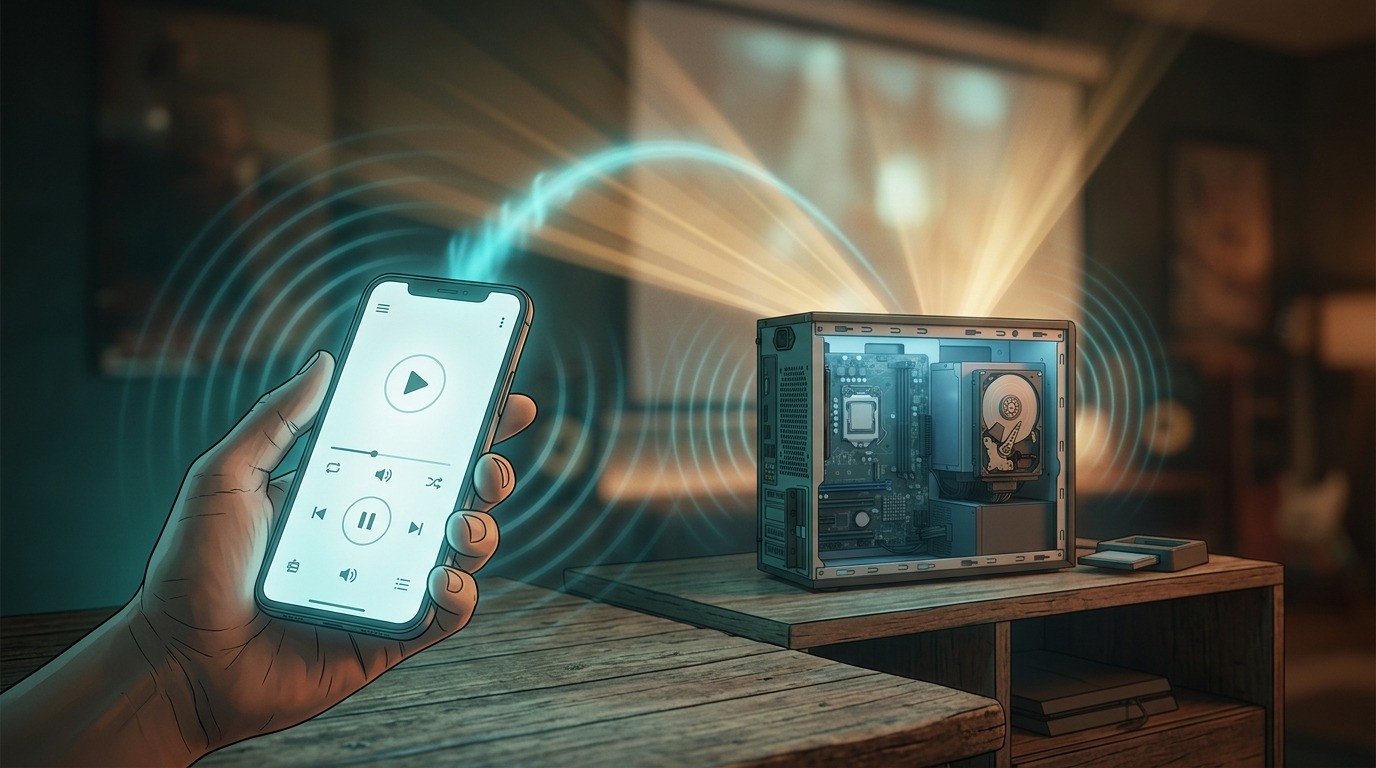
Once your HTPC plays movies, the next win is not having to walk over to it. This guide shows how to control Kodi from your phone, play its library on your TV or a second Kodi box, and drop new files onto it from your main PC. It is written for Kodi 21.3 “Omega” on Windows 11, and it all starts with a fixed address.
1. Give the HTPC a static IP
Remote apps and TVs need to find your HTPC at a predictable address. On automatic (DHCP) that address can change, and your remote suddenly can’t connect. On the HTPC:
- Open Settings → Network & internet → Ethernet.
- Next to IP assignment, click Edit.
- Pick Manual and turn on IPv4.
- Type an IP address outside your router’s DHCP range, for example 192.168.1.50.
- Type Subnet mask 255.255.255.0.
- Type your router’s address as Gateway, for example 192.168.1.1.
- Type your router’s address (or 1.1.1.1) as Preferred DNS.
- Click Save.
Don’t skip the gateway and DNS. With only an IP address, the HTPC gets an address but no route out, and its internet stops working.
Cleaner alternative: leave Windows on automatic, as Microsoft recommends, and reserve a fixed IP for the HTPC in your router.
2. Control Kodi from your phone with Kore
Kore is Team Kodi’s official remote app for Android, free on Google Play and F-Droid. It talks to Kodi’s web server, so switch that on first. In Kodi on the HTPC:
- Open Settings → Services → Control.
- Turn on Allow remote control via HTTP and note the Port number shown.
- Turn on Require authentication.
- Set a Username and a real Password.
- Turn on Allow remote control from applications on other systems.
- Optional: in Settings → Services → General, turn on Announce services to other systems, so Kore can find Kodi by itself.
Security: the Kodi wiki warns that remote control from other systems lets anyone on your network fully control the device. Keep the password on, and never forward the port to the internet.
Then, on your phone:
- Open Kore and add a new media center.
- If Kore doesn’t find Kodi, enter it by hand: the HTPC’s static IP, the port, and the username and password you set in Kodi.
Still no connection? Phone and HTPC must be on the same home network, so turn off mobile data or a VPN on the phone while you test.
3. Play your Kodi library on a smart TV
Your TV’s built-in media app can play what is in Kodi over UPnP/DLNA. Kodi ships with UPnP turned off. In Kodi on the HTPC:
- Open Settings → Services → UPnP/DLNA.
- Turn on Enable UPnP support.
- Keep Kodi running on the HTPC.
- On the TV, open its media app and pick Kodi from the media servers it finds.
Some files won’t play? Kodi sends the file unchanged; it does not transcode, a Kodi forum moderator explains. So the TV only plays formats it supports itself. For anything else, play it in Kodi on the HTPC, started from Kore.
4. Add your HTPC as a UPnP source on another Kodi box
Running Kodi on an Android TV or Fire TV in another room? It can browse the HTPC’s library over UPnP. On the HTPC, Enable UPnP support must be on (step 3) and Kodi must be running. Then, on the second Kodi:
- Open Settings → Services → UPnP/DLNA and turn on Enable UPnP support.
- Go to Videos → Files and select Add videos….
- Click Browse.
- Select UPnP devices.
- Pick the HTPC and click OK.
- Give the source a name and click OK.
Know the limit: a UPnP source cannot build a library on the second box. You browse and play, but you don’t get Kodi’s library features there. If you want those, use the shared folder from step 5 instead: in Add videos… → Browse, pick Add network location, choose the SMB protocol and enter the HTPC’s IP and folder.
5. Reach the files from your main PC
To copy new movies onto the HTPC from your desktop, share a folder on it, for example Films. Windows 11 hides a PC on a public network, which is a common reason a share stays invisible. On the HTPC:
- Open Settings → Network & internet → Ethernet and set Network profile type to Private network.
- Search Settings for advanced sharing settings and, under Private networks, turn on Network discovery and File and printer sharing.
- Right-click the Films folder and choose Show more options.
- Select Give access to → Specific people.
- Pick the user account you will sign in with from your main PC, rather than Everyone.
Then, on your main PC, following Microsoft’s steps:
- In File Explorer, select This PC, then More → Map network drive.
- Type
\\192.168.1.50\Films, with your HTPC’s IP. - Tick Reconnect at sign-in and click Finish.
- Sign in with that account if Windows asks.
Frequently asked questions
Why don’t I see “UPnP devices” when I browse for a source?
UPnP is off by default in Kodi. Turn on Enable UPnP support in Settings → Services → UPnP/DLNA on the box you browse from, and on the HTPC that shares.
More in the series: How to add storage to a mini PC HTPC, or back to the budget media center PC guide.

John Lock
The Tested Weekly
One email a week with the guides we tested, sources linked. No spam.