
⚡ Key takeaways
- Everything starts at the plus button in the lower left of the chat box — or at
/for commands. - Claude accepts PDF, DOCX, CSV, TXT, HTML, ODT, RTF, EPUB, JSON and XLSX, plus JPEG, PNG, GIF and WebP images.
- The 100-page PDF threshold is the trap. At 101 pages and up, Claude reads the text but stops seeing your charts.
- Non-PDF documents are read as text only — images embedded in a Word file are invisible to Claude.
You can ask Claude a lot of questions, but Claude cannot see your work. Uploading files and images to Claude is how you hand over a report, a spreadsheet, a photo of a receipt or a page of code — and it takes about five seconds. The part that costs people time is not the upload button. It is the quiet rules around it: which file types work, when a PDF stops being read as a visual document, and what Claude actually does with what you attach. This guide covers the plus menu, the supported types, the limits, and a short exercise you can replay with any file you already have. Everything here is for claude.ai in a browser on the Free plan, and it builds on the previous part, How to write prompts that get better results from Claude.
The plus menu, and the other ways in
Look at the chat box at the bottom of the screen. In its lower left corner there is a plus button. Click it and you get a menu of things you can add to the conversation. For this article, the item you want is the first one: “Upload or add files.” The same menu also holds Take a screenshot, Add to project, and the Web search switch. You will not need those today.
There is a second way in. Typing / into the message box opens additional options and commands, which is handy when your hands are already on the keyboard. Both routes lead to the same place.
From the menu, the upload itself is three moves:
- Click the plus button in the lower left of the chat box.
- Select “Upload or add files.”
- Choose your files and click “Open.”
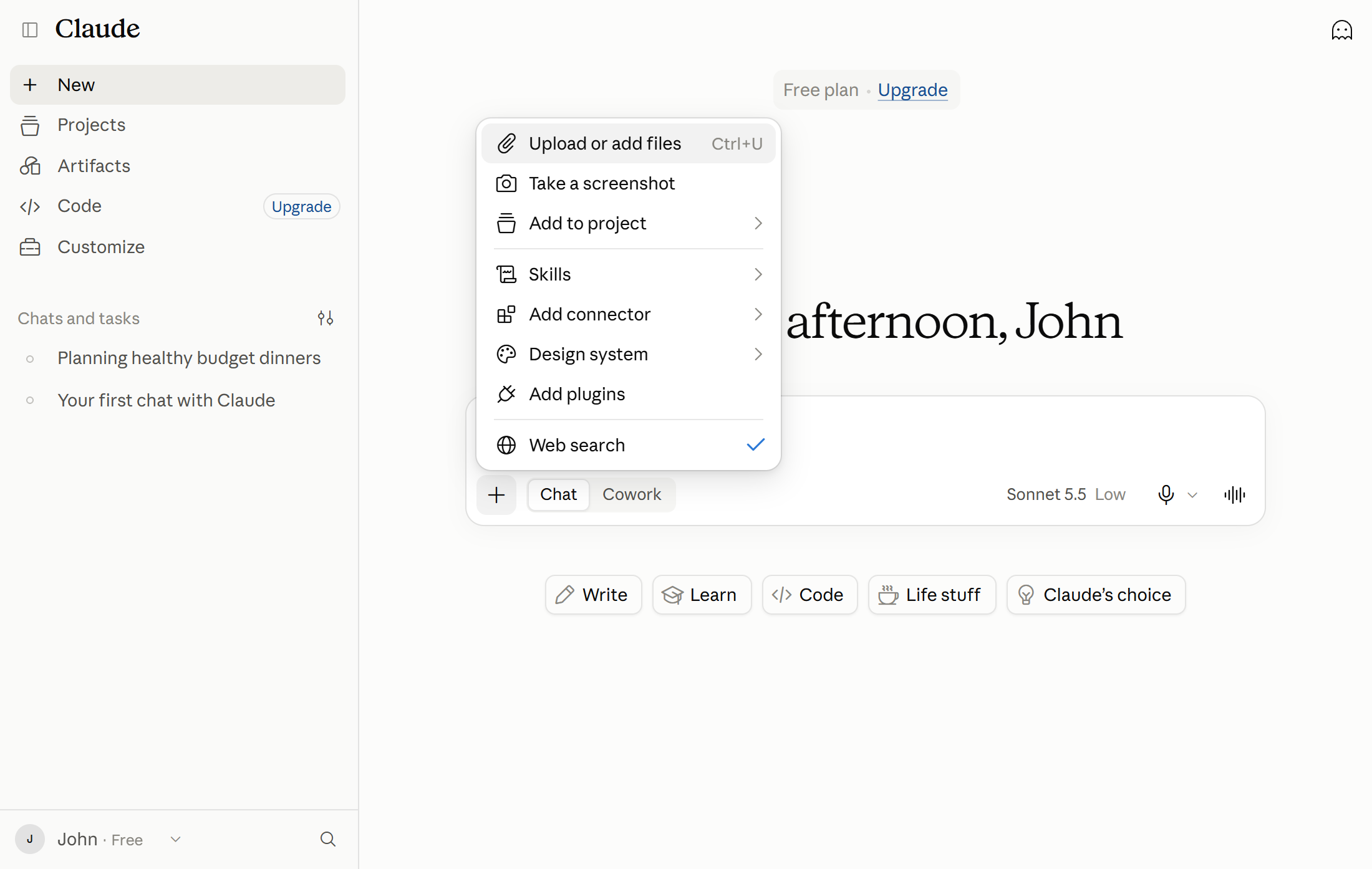
Two shortcuts save you the menu entirely:
- Drag and drop. Drag files straight from a File Explorer window into the chat window.
- Copy and paste. Copy an image anywhere on your machine and paste it into Claude from the clipboard.
Prefer the keyboard? Ctrl+U opens the same file picker without the menu.
What Claude accepts
Not every file on your desktop is welcome. Here is the accepted list, straight from the help article:
- Documents: PDF, DOCX, CSV, TXT, HTML, ODT, RTF, EPUB, JSON and XLSX.
- Images: JPEG, PNG, GIF and WebP.
One entry carries a condition: XLSX needs “code execution and file creation” switched on in your account.
🚫 The silent failure: images inside documents
For non-PDF documents, Claude extracts text only. If a Word file or an HTML page contains embedded images, Claude will not read or interpret them. A screenshot pasted into a DOCX is decoration as far as the model is concerned.
The practical rule: if the visual matters, upload the image itself, or use a PDF under the page threshold described next. A chart as a PNG is a fact Claude can see. A chart embedded in a report is a fact Claude has never met.
The 100-page PDF threshold
PDFs are the format people upload most, and they come with the single most surprising rule in this article. Claude treats short and long PDFs differently:
- 100 pages or fewer. Claude analyzes both the text and the visual elements — images, charts and graphics.
- 101 to 1000 pages. Claude processes text only. It does not analyze visual elements.
- Over 1000 pages. The upload is refused with an “Uploaded file is too large” error.
That middle band is where good work goes quietly wrong. You upload a 150-page annual report. Claude reads every word and returns a confident summary that never mentions the revenue chart on page 47 — because it never saw that chart. Nothing errored. Nothing warned you. The information was there and the analysis skipped it.
The fixes are all cheap:
- Split the document into sections of 100 pages or fewer, and upload the section you actually need.
- Export the chart as an image and attach it alongside the PDF.
- Reference pages correctly. When you point Claude at a specific page, use the page numbers shown in your PDF viewer, not the page numbers printed on the document itself. In a report with roman-numeral front matter those two numbering schemes disagree, and Claude will look in the wrong place.
⚠️ Before you upload a long PDF
- Count the pages. Over 100 means no visual analysis.
- Check what you actually need back. If the answer depends on a chart, table or diagram, split the file or export that figure as an image.
- Plan for the page-number mismatch between your viewer and the printed document.
Image limits, stated honestly
Here the documentation disagrees with itself, and the honest thing is to show both numbers rather than pick one.
| Limit | Help Center (chat uploads) | Platform docs (claude.ai) |
|---|---|---|
| File size | 500MB per file | 10 MB per image |
| Count | Up to 20 files per chat | 20 images per message |
| Dimensions | Up to 8000×8000 pixels | Up to 8000×8000 pixels |
The two size figures are not a contradiction so much as two scopes: one is a per-file ceiling for anything you attach, the other is a per-image ceiling written for people building against the API. They cannot both be the binding constraint on a single 20MB JPEG, and this guide will not pretend otherwise. For everyday use, both lead to the same habit: compress before you upload. A photo straight off a phone is far larger than Claude needs, and it counts against your usage.
On count, the Help Center’s “up to 20 files per chat” is the safer number for a beginner, because it is written for the chat product rather than the API. If you attach a batch of screenshots, twenty per conversation is the working ceiling.
Three smaller rules round this out:
- Aim for 1000×1000 pixels or larger. The help article recommends that as a practical minimum for image quality.
- Animated GIFs do not animate. Only the first frame is used.
- Size costs usage. File attachment size consumes your usage budget, alongside message length, conversation length and tool use.
What Claude does with the file
Once a file is attached, Claude automatically attempts to parse its content. In the chat the file shows up as an attachment, and from there you prompt Claude about it like any other part of the conversation. Anthropic’s course material frames the point well: “When you upload relevant documents or background information into a specific chat, Claude considers that context in its response… Think of it as a shortcut so that Claude can understand what your needs are.”
That shortcut is the real reason to upload. Instead of pasting forty pages into the message box and hoping Claude reads the right part, you attach the file and ask about it. Four uses cover most of what people actually do with it:
- Summarize. Attach a document and ask for its key points, its arguments, or what it decides.
- Describe or analyze an image. Share a photo and ask what is in it, what it shows, or what is wrong with it.
- Find trends. Attach a spreadsheet and ask Claude to identify patterns, outliers, or the month that broke the run.
- Explain or debug code. Upload code and ask what it does, or where it will fail.
Two boundaries matter. First, the attachment lives in that chat — it is context for the conversation, not a permanent part of your account. Second, Claude can be confident and wrong. For high-stakes work, verify the key facts independently: ask for citations, ask for a confidence level, and enable web search so the answer is grounded in current information.
Replayable exercise: upload and interrogate a document
This takes about five minutes and uses a file you already own. Pick any PDF under 100 pages — a manual, a newsletter, a public report. Skip anything with personal details. If you have no PDF handy, any DOCX or TXT works, and you can swap in a photo for step 2.
- Open a new chat on claude.ai so nothing else pollutes the context.
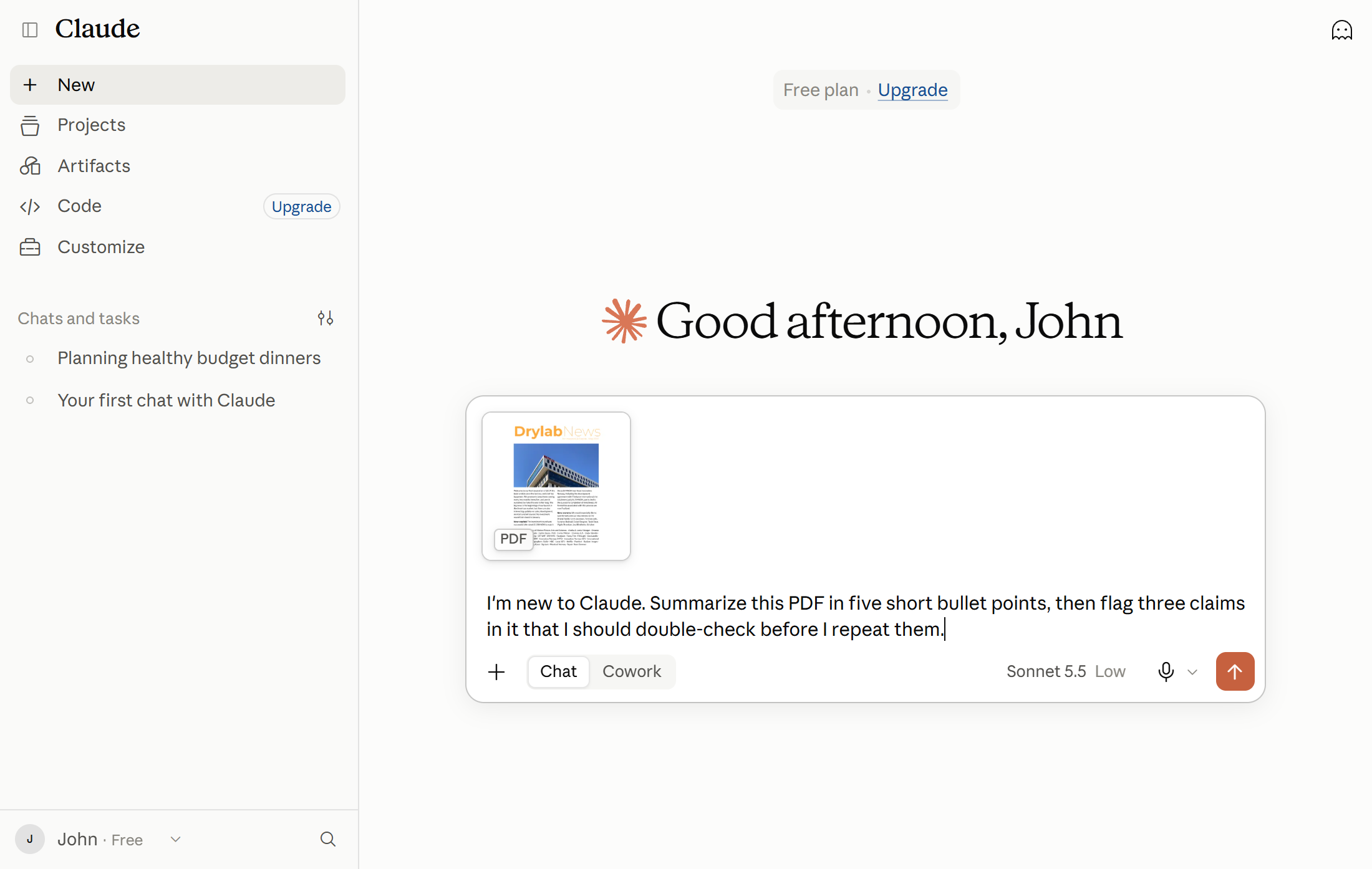
- Click the plus button and choose “Upload or add files.” Select your file and click “Open.” The file then appears in the chat as an attachment.
- Ask for the structure, not the answer. Type: “I’m new to Claude. Summarize this PDF in five short bullet points, then flag three claims in it that I should double-check before I repeat them.” This tells you whether Claude actually read the file.
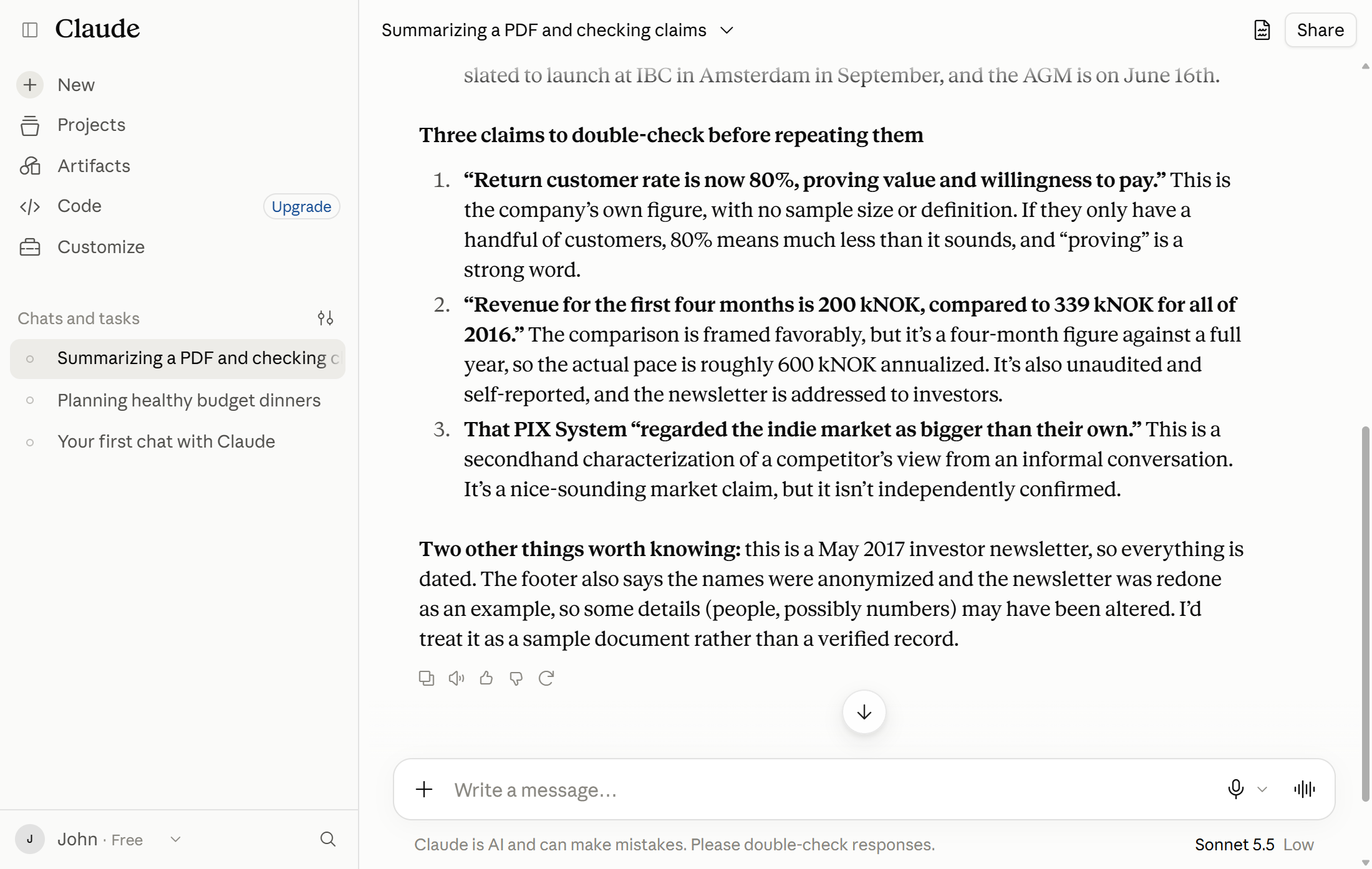
- Point at a specific page using your PDF viewer’s page numbering: “On page 12, what does the document recommend, and what reason does it give?” Then check the answer against the page yourself.
- Test the threshold. If you have a document over 100 pages, upload it and ask: “Describe the chart on page 60.” A short PDF under 100 pages gets you a description; a long one gets you a confession that only the text was analyzed.
Step 5 is the one worth repeating, because it is the only way to see the 100-page rule with your own eyes. Every result here is checkable: you either get a page reference you can verify, or a limitation stated plainly.
Frequently asked questions
Why did Claude ignore the charts in my PDF?
Because the file is longer than 100 pages. Between 101 and 1000 pages Claude processes text only and does not analyze visual elements. Split the document into sections of 100 pages or fewer, or export the chart as an image and attach it separately.
Can Claude read images inside a Word document?
No. For non-PDF documents Claude extracts text only, and it cannot read or interpret embedded images. If the visual carries meaning, upload it as a JPEG or PNG.
Does uploading a file use up my usage?
Yes. File attachment size is one of the factors that consume usage, along with message length, conversation length, tool use, model choice, and effort level. A folder of full-resolution photos is an expensive way to ask one question. Check where you stand in Settings > Usage; the last article in this series explains how the limits work.
Can I upload the same file to a project instead of a chat?
Yes, and the rules are different: project files are capped at 30MB each, the count is unlimited, and the total must still fit the context window. Text extraction only applies there, except for multimodal PDFs.
What’s next
Uploading is the moment Claude stops guessing and starts reading. Use the plus button or a drag and drop, keep PDFs at or under 100 pages so the charts survive, attach images as images rather than burying them in a document, and reference pages the way your PDF viewer numbers them. Then verify what matters. The next article in this series, Memory, search, and privacy on Claude.ai, shows how Claude keeps context across conversations and where your instructions live. Until then, you can browse every part of this series on the Claude on the web: a beginner’s guide page.

John Lock
Liked this? There's more where it came from.
Get our digest — articles worth your time, no spam, unsubscribe in one click.
Subscribe to Factnetize →