
⚡ Key takeaways
- Claude memory is on by default for Free, Pro, and Max. It stores what it learns as individual topics, not a summary of each chat.
- Chat search is a paid-plan feature (Pro, Max, Team, Enterprise). Incognito chats are available on every plan and leave nothing in your history or memory.
- You can turn memory off for one chat, but only before you send the first message.
- Deleting a conversation does not delete the memories built from it. Remove those one by one in Settings > Memory.
You can use Claude for a few weeks and then notice it already knows your role, the project you are stuck on, and how you like answers written. That is Claude memory doing its job, and it is switched on from the start. This article shows where that knowledge lives, how to search past chats, how to keep one conversation out of memory, and what an incognito chat really does.
Three controls sit behind all of this, and they are not in the same place. Account-wide memory lives in Settings > Memory, the per-chat memory toggle sits in the “+” menu next to the message box, and incognito mode is a ghost icon in the upper right corner.
What Claude memory keeps
Anthropic’s Help Center is specific about the mechanism: Claude saves memory as a set of individual topics as you chat, rather than summarizing conversations after they end. Mention that a deadline moved and your next conversation already knows. Claude saves on its own, and you can tell it to “remember this” to save something directly.
Memory is on by default for Free, Pro, and Max plans on the web, in Claude Desktop, and in the mobile app. On Team and Enterprise plans the organization’s owner decides whether memory exists at all, and it stays off for each member until they turn it on themselves. Typical topics are your role and projects, the people and places in your work, your communication and technical preferences, and details of ongoing work.
What it does not save
By default, Claude does not store topics about personal or sensitive subject matter, such as your health, race, ethnicity, religious beliefs, politics, or gender identity. You can allow them by turning on “Include sensitive topics in memory” in Settings > Memory. Nothing from before you switch it on is saved retroactively, and a notice appears above the message box each time Claude saves one of these topics. A short list is never saved even if you ask: government ID numbers, criminal history, financial account numbers, and immigration status.
Review and change what Claude remembers
- Click your initials in the lower left corner, choose Settings, then Memory.
- The switch at the top, Generate memory from chats, turns memory on or off for your account. If the page shows only switches and no list, memory is off or still empty.
- Below the switches, Claude lists what it remembers, grouped into sections such as You, Areas, and People. Each row has an Actions menu.
- To change something, type it in the Tell Claude what to change box at the bottom of the page, or tell Claude in any chat what to remember, change, or forget.
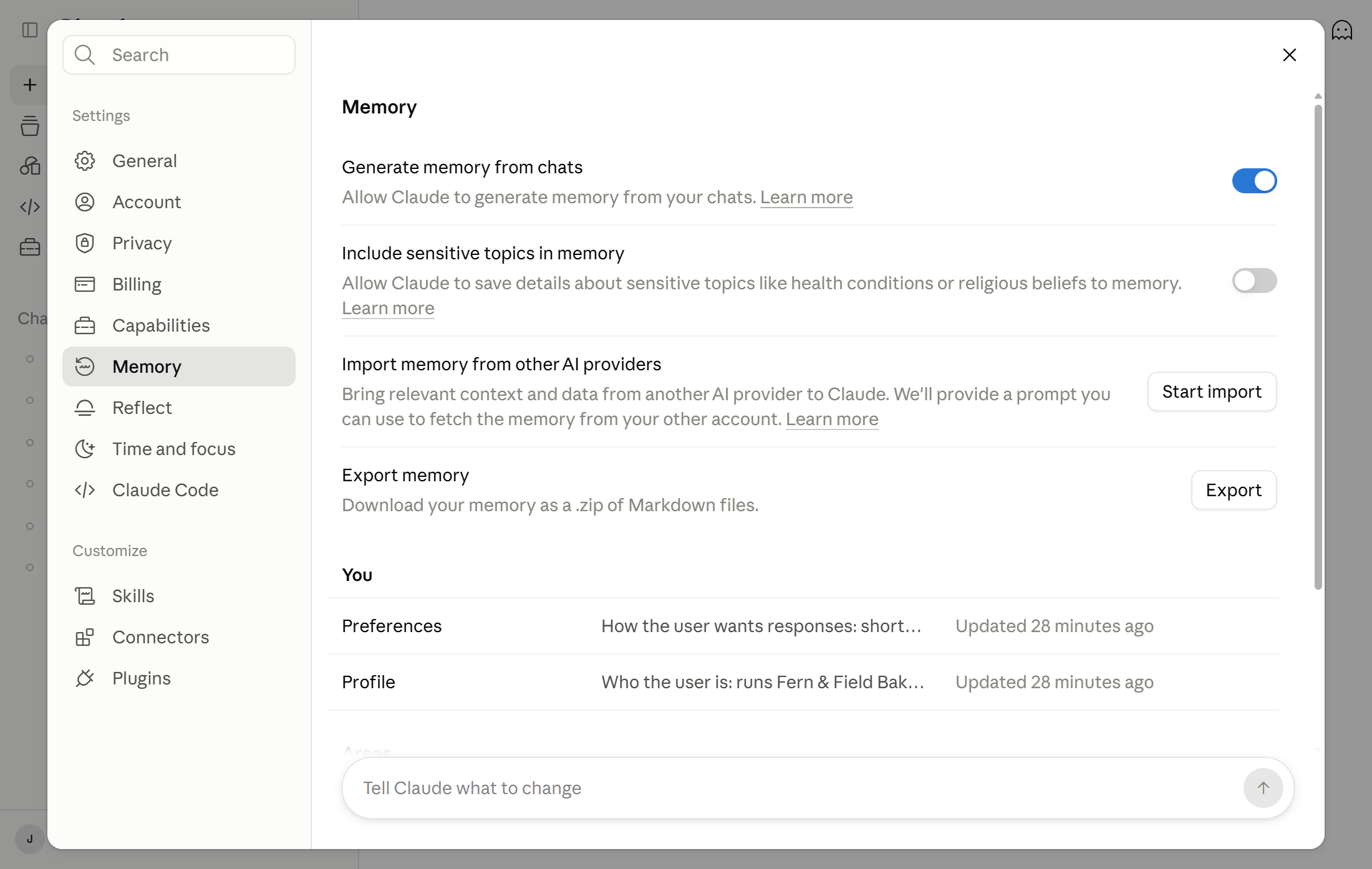
The same page lets you import memory from another AI provider and export your own, a feature Anthropic labels experimental. Anthropic’s Help Center still describes a Topics list with Pause memory and Reset memory buttons; on the Free account used for this guide, neither button appeared. Accounts on the legacy experience find memory under Settings > Capabilities.
Turn memory off for one chat
You can leave memory on for your account and skip it for a single conversation. The catch is timing: it has to happen before you send the first message. Once the chat starts, the setting is locked, and the only way to change it is to start a new chat.
- Start a new chat.
- Click “+” in the message box.
- Click “Memory” at the bottom of the menu to turn it off for this chat.
- Send your first message.
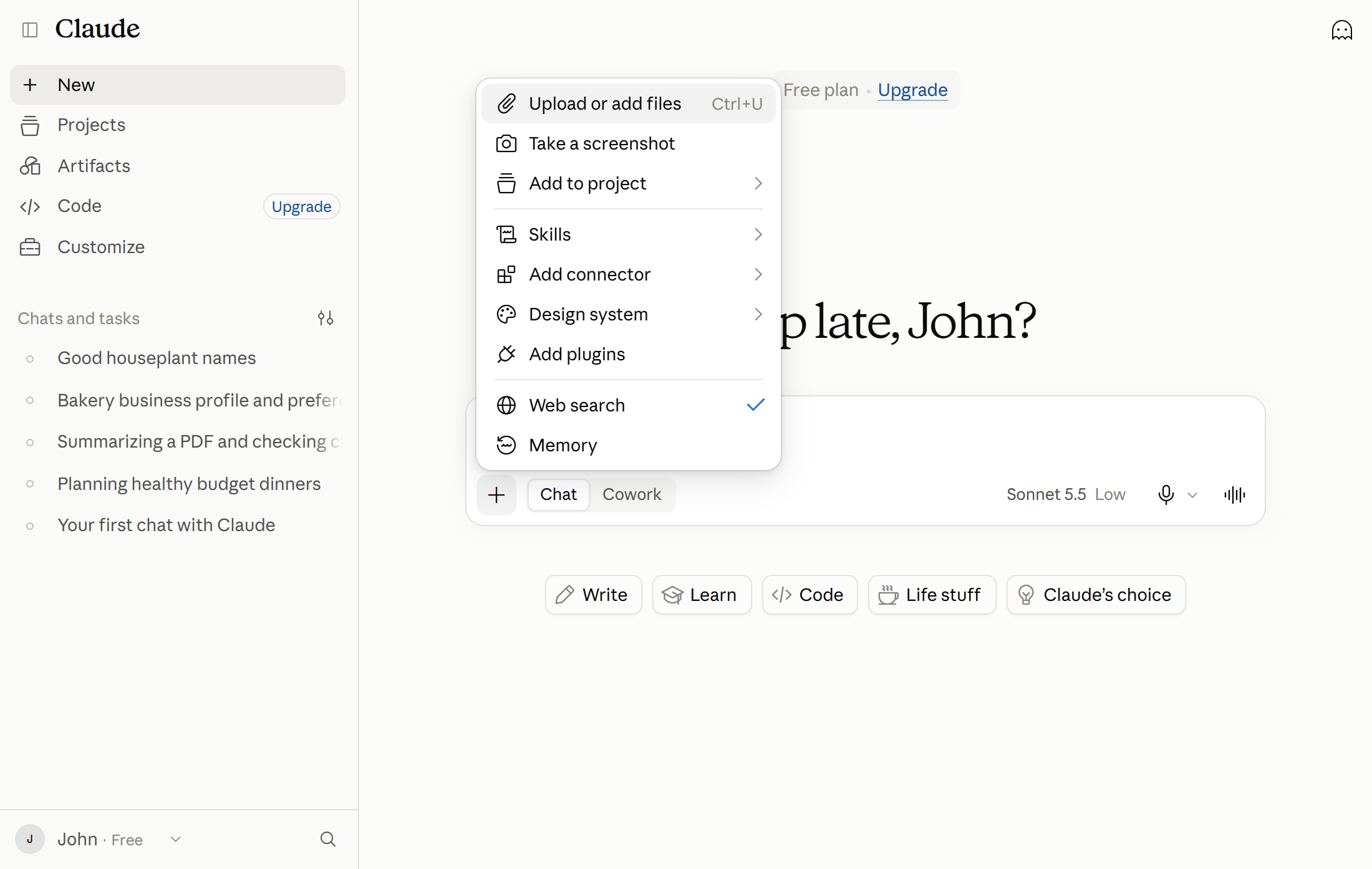
If Memory is missing from the menu, memory is off for your account, so there is nothing to switch off. The same toggle works inside a project: a chat started with memory off uses neither your memory nor the project’s memory.
Searching past chats
Searching past chats is available on paid plans only (Pro, Max, Team, and Enterprise), on the web, in Claude Desktop, and in the mobile apps. Free accounts do not get it. Once the feature has reached your account it is on by default, so there is no switch to find. You just ask:
- “What did we discuss about [topic]?”
- “Can you find our conversation about [subject]?”
- “Let’s continue where we left off with [project].”
These searches use Retrieval-Augmented Generation and show up as tool calls in your current chat, so you can see that Claude actually went looking. The search reaches all chats outside projects, plus the chats inside one specific project, never across several projects at once. When Claude cites an earlier conversation, you get a link back to it. To switch the feature off, turn off “Search and reference chats” in Settings > Memory. Claude does not pull information from incognito chats when searching.
Instructions that apply to every chat
Memory is not the only way Claude learns how you work. Instructions for Claude are account-wide: click your initials in the lower left corner, choose Settings > Account, and type them in the Instructions for Claude field under Profile. Anything you add there applies to all of your conversations. Good candidates are the terms you use, the scenarios you run into, and communication rules such as “keep answers under 150 words.” If you used Global instructions in Claude Cowork, they are part of Instructions for Claude in the new Claude experience.
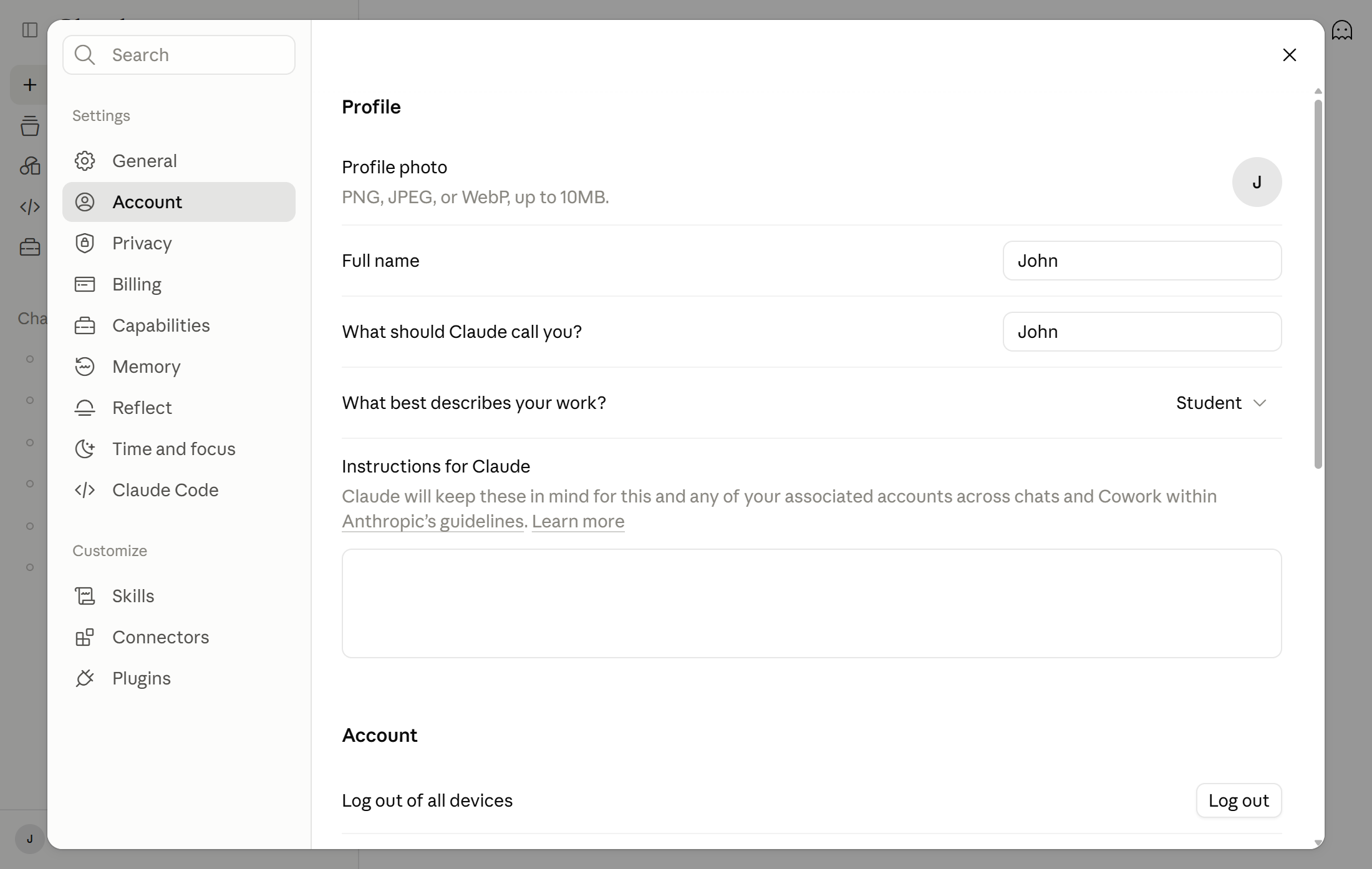
Project instructions apply only to the chats inside one project, which makes them the place for the context of a single piece of work. Projects are open to everyone, including Free accounts, with a cap of five projects on Free. Anthropic’s personalization guide lists project instructions as a paid feature, so a free account may create projects without getting that setting.
Incognito chats
Incognito chats are the strongest privacy switch Claude offers, and unlike chat search they are available on every plan, including Free.
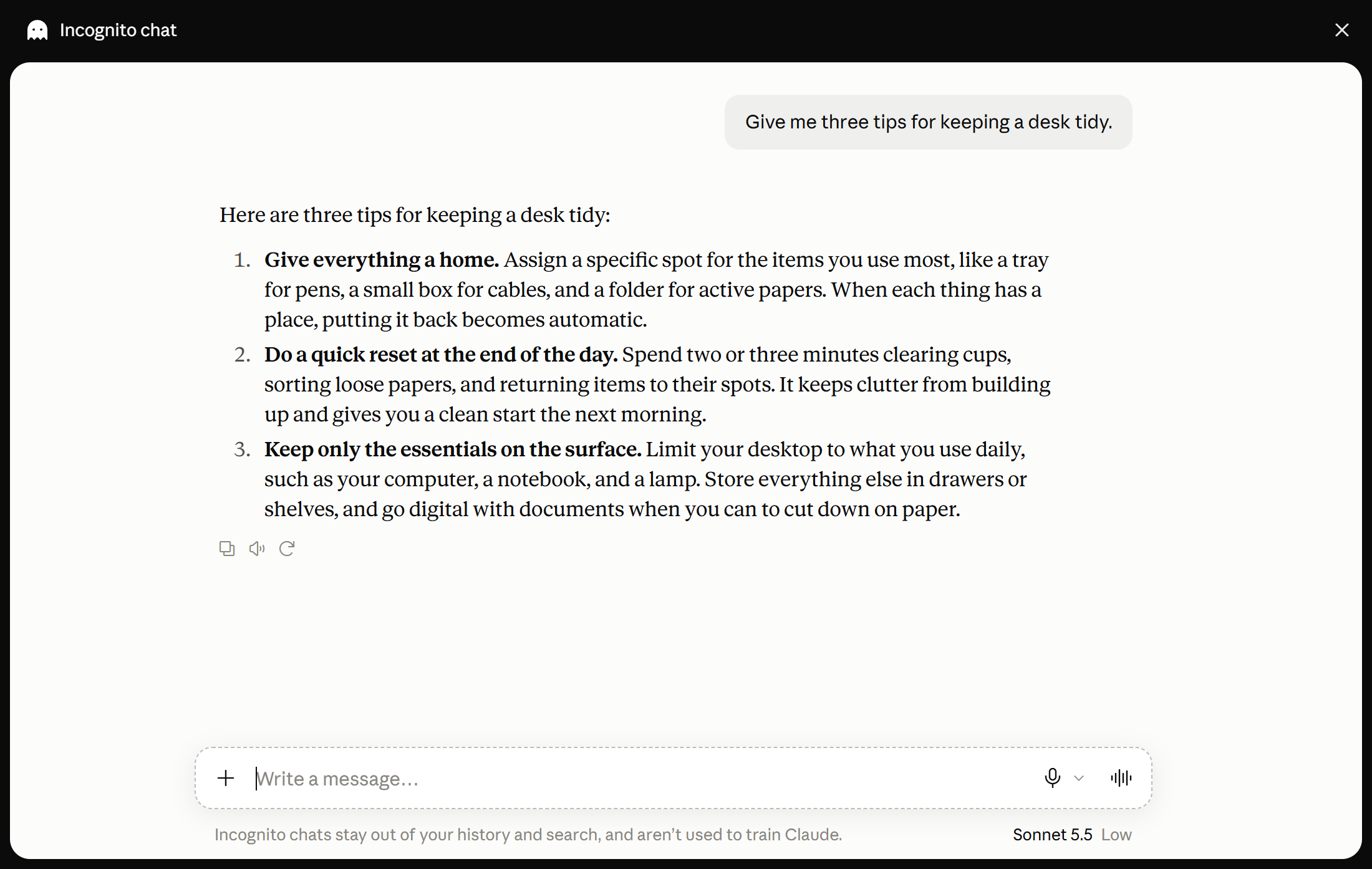
- Click the ghost icon in the upper right corner of the screen.
- Check for the black border and the “Incognito chat” label in the upper left corner.
- Talk to Claude as normal.
- Click the “x” in the upper right corner when you are done.
| Mode | Saved to history | Used in memory | Found by chat search |
|---|---|---|---|
| Regular chat | Yes | Yes | Yes |
| Memory off for one chat | Yes | No | Yes |
| Incognito chat | No | No | No |
Incognito chats are not used for training, they do not use your existing memory, and nothing from them is added to future memory. Three limits matter in practice. You cannot convert an incognito chat into a regular one. Once closed, it cannot be reopened, so copy out anything you want to keep first. And incognito chats are not available inside projects; there, turn Memory off in the “+” menu before your first message instead.
⚠️ Incognito is not invisible
- Incognito chats are retained for 30 days by default, or longer under your organization’s data retention setting.
- On Team and Enterprise plans they are included in the organization’s data exports and are subject to the Compliance API.
- Claude can still read your profile information, such as custom styles and personal preferences, inside an incognito chat.
Privacy before you paste something sensitive
Deleting a conversation does not delete the memories built from it. Anthropic says so directly: when a conversation expires or is deleted, related memory entries are not removed, but you can delete individual memories at any time. All memory data is included in data exports. A monthly habit helps: read the list in Settings > Memory and delete anything you would not want exported.
For the wider question of whether consumer Claude chats are used to train models and how long each provider keeps your data, our guide to local vs cloud AI privacy covers the provider-by-provider picture, including Anthropic’s retention windows.
Frequently asked questions
Is Claude memory on by default?
Yes, for Free, Pro, and Max plans on the web, in Claude Desktop, and in the mobile app. On Team and Enterprise plans the organization’s owner controls whether memory exists, and it stays off for each member until they turn it on themselves.
How do I stop Claude from remembering one conversation?
Start a new chat, click “+” in the message box, click Memory to turn it off, and then send your first message. You have to do it before that first message, because the setting cannot be changed once the chat has started. The chat still appears in your history.
What is the difference between an incognito chat and a chat with memory turned off?
An incognito chat is not saved to your history or memory and cannot be found by chat search. A chat with memory turned off stays in your history and can still be found by a search from another conversation. What changes is that Claude neither uses your memory in that chat nor adds to it.
What’s next
The controls are simpler than they look: Settings > Memory for the account-wide picture, the “+” menu for a single chat, and the ghost icon when you want nothing saved at all. Set your Instructions for Claude once, check that list once a month, and keep anything truly sensitive out of a chat you would not want in a data export.
The last article in this series, Claude.ai usage limits: the five-hour budget explained, covers what happens when you run out of budget and how to make it last. If you would rather run the conversation on your own machine, our guide to connecting Hermes to Claude Code covers the no-API-key route. The previous part, Uploading files and images to Claude, and every other part are on the Claude on the web: a beginner’s guide page.

John Lock
Liked this? There's more where it came from.
Get our digest — articles worth your time, no spam, unsubscribe in one click.
Subscribe to Factnetize →