
⚡ Key takeaways
- The whole interface is one text box at the bottom; the sidebar holds your chats, projects, and artifacts.
- Your first prompt can be one plain sentence. Write it like a message to a coworker, then read the reply and react to it.
- The model menu next to the send button sets the model, the effort, and whether Claude thinks first. You can change all three mid-chat.
- If a message will not send, the cause is usually your usage limit, not a bug.
You have a Claude account and one empty box at the bottom of the screen. This article walks you through your first conversation with Claude on the web: what the screen shows, how to start a chat and send a first prompt, what the model menu does, and what to do with the reply. It is deliberately small. Better prompts come in the next article.
What you see when you open claude.ai
When you open claude.ai you get a clean interface with a text input area at the bottom of the screen. The conversation fills the middle, and everything else is arranged around those two things.
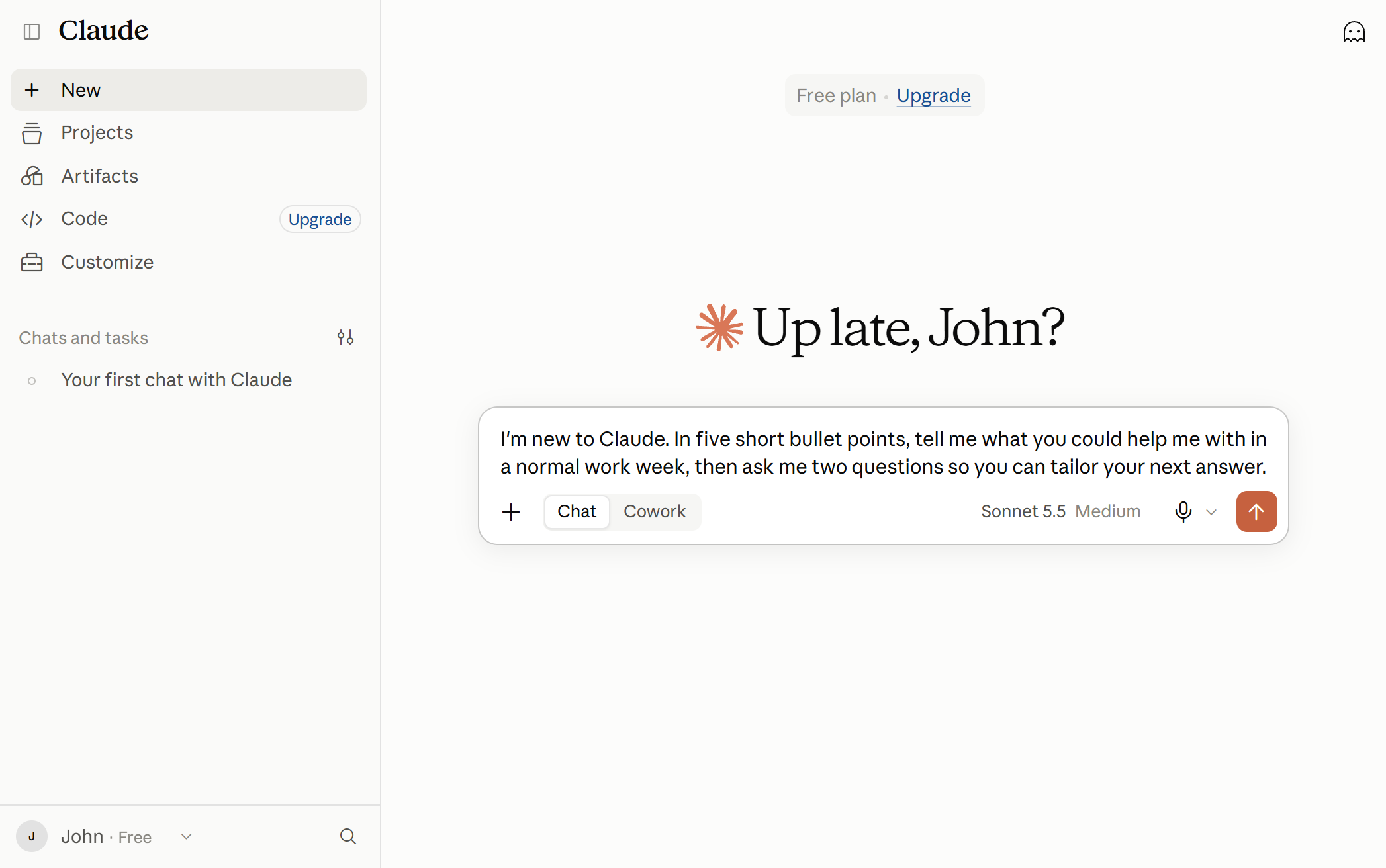
The sidebar holds the icons for creating new chats and for jumping back into old ones. It also links to projects, which are workspaces with persistent context and custom instructions, and to artifacts, which turn ideas into shareable apps, tools, or content. You need neither on day one.
Two controls matter more than the rest:
- The “+” button and the “/” key. Click “+” in the lower left of the message box, or type “/”, to see additional options and commands. This menu is also where you add files (article 4) and switch memory off for one chat (article 5).
- The model menu. It sits next to the send button. The model name is shown below your text input on web and desktop, and at the top of the screen on mobile.
One note on labels: Anthropic has folded “Claude Cowork” back into plain Claude, and the “+” menu may still show a Chat versus Cowork switch on your account. If a button in an older tutorial is named differently from what you see, that is the reason.
Send your first prompt
Six steps, none of them hidden.
- Open claude.ai in your browser and make sure you are signed in.
- Click the new-chat icon in the sidebar. The icons beside it reopen older chats.
- Click in the text box at the bottom of the screen.
- Type a prompt. For a first try, copy this one: “I’m new to Claude. In five short bullet points, tell me what you could help me with in a normal work week, then ask me two questions so you can tailor your next answer.”
- Look at the model name next to the send button, then click send.
- Answer Claude’s two questions. That is the whole loop: you write, Claude replies, you react.
Anthropic’s own advice is to speak to Claude the way you would to a coworker or friend: naturally, concisely, and conversationally. A first prompt does not need a special format. Prompts that need one are the subject of article 3.
The model menu: model, effort, and thinking
The model menu next to the send button controls three settings. You can leave all of them on their defaults for now, but you should know what they are, because they decide how fast your usage runs down.
| Setting | What it does | Worth knowing |
|---|---|---|
| Model | Which Claude model answers you | Sonnet is the recommended everyday model. Sonnet and Haiku are available on Free; Opus requires a paid plan. |
| Effort | How much work goes into each reply: Low, Medium, High, Extra high (xhigh), or Max | Low and Medium suit routine tasks and stretch your usage further. High is the best balance of quality and speed. Extra high is designed for long-running coding and agentic tasks and needs Opus 4.7 or newer. Max is for the deepest reasoning. |
| Thinking | Whether Claude thinks before it answers | Separate from effort, so you can combine them. When it is on you see a “Thinking” indicator with a timer and an expandable Thinking section above the answer. |
Higher effort means more thorough replies, but they take longer and use more tokens, so you reach your usage limit faster. Thinking helps with complex analysis but adds waiting time, and it is not needed for simple questions.
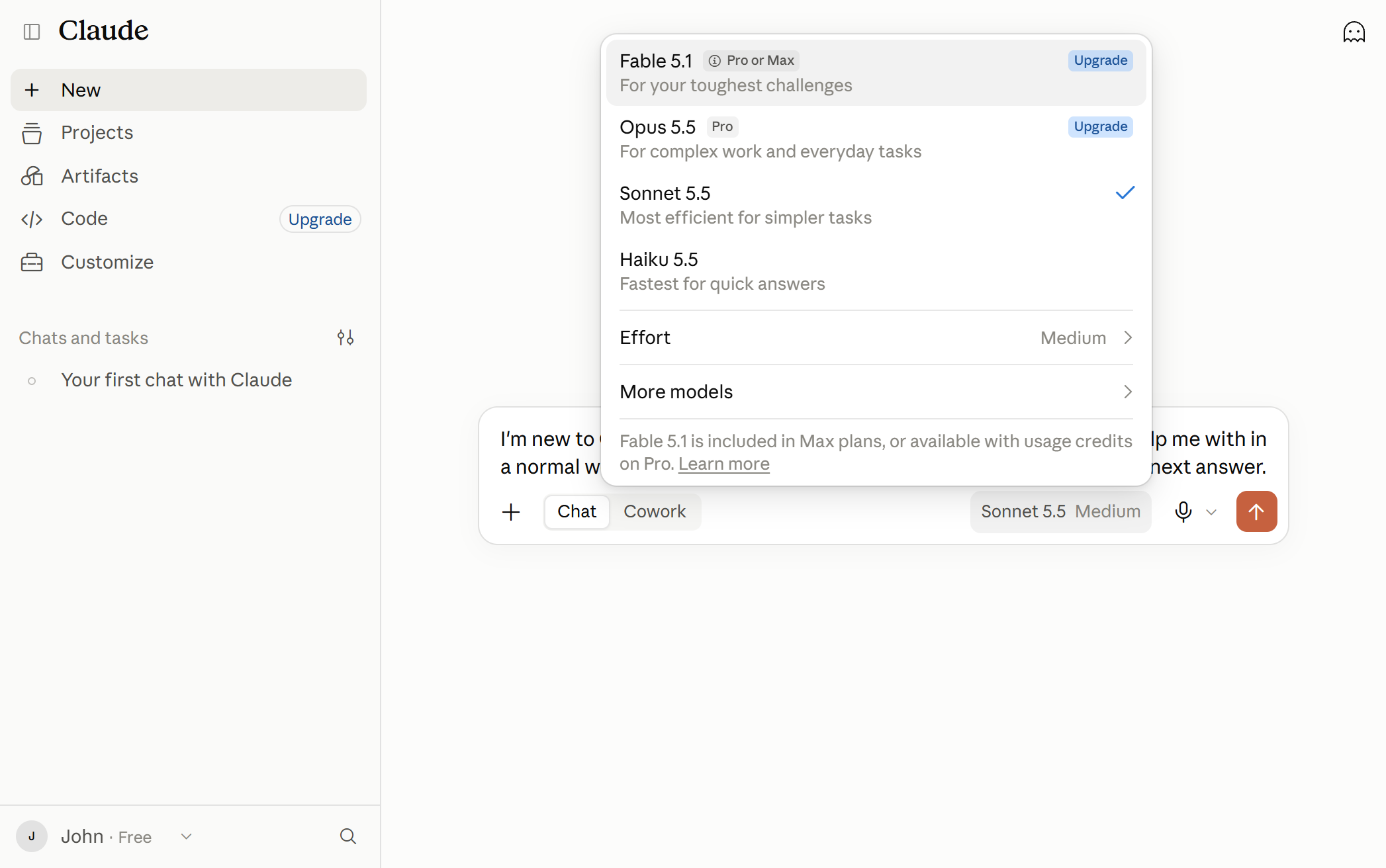
You can change the model, effort, or thinking setting at any point in a conversation, and the change applies from Claude’s next response. One caveat, because two Anthropic sources disagree: the Claude Academy lesson says changing the model starts a new chat, while the Help Center says you can change it at any point. The Help Center is the more recent operational documentation, so this guide follows it. If you see your chat restart on your own account, trust what you see.
Read the reply, then react
Claude’s answer appears in the middle of the screen. Three things are worth noticing in your first conversation:
- Long, self-contained answers open beside the chat. When the content is significant and self-contained, typically over 15 lines, Claude opens it as an artifact in its own window next to the conversation instead of burying it in the chat.
- You steer by replying. Anthropic describes conversations with Claude as iterative: you chain small prompts and guide the dialogue from the replies you get. Answering Claude’s questions, as in step 6, is a perfectly good way to start.
- Claude can be wrong. It occasionally generates plausible but incorrect information, especially about specific facts or niche topics. For anything that matters, check the facts yourself.
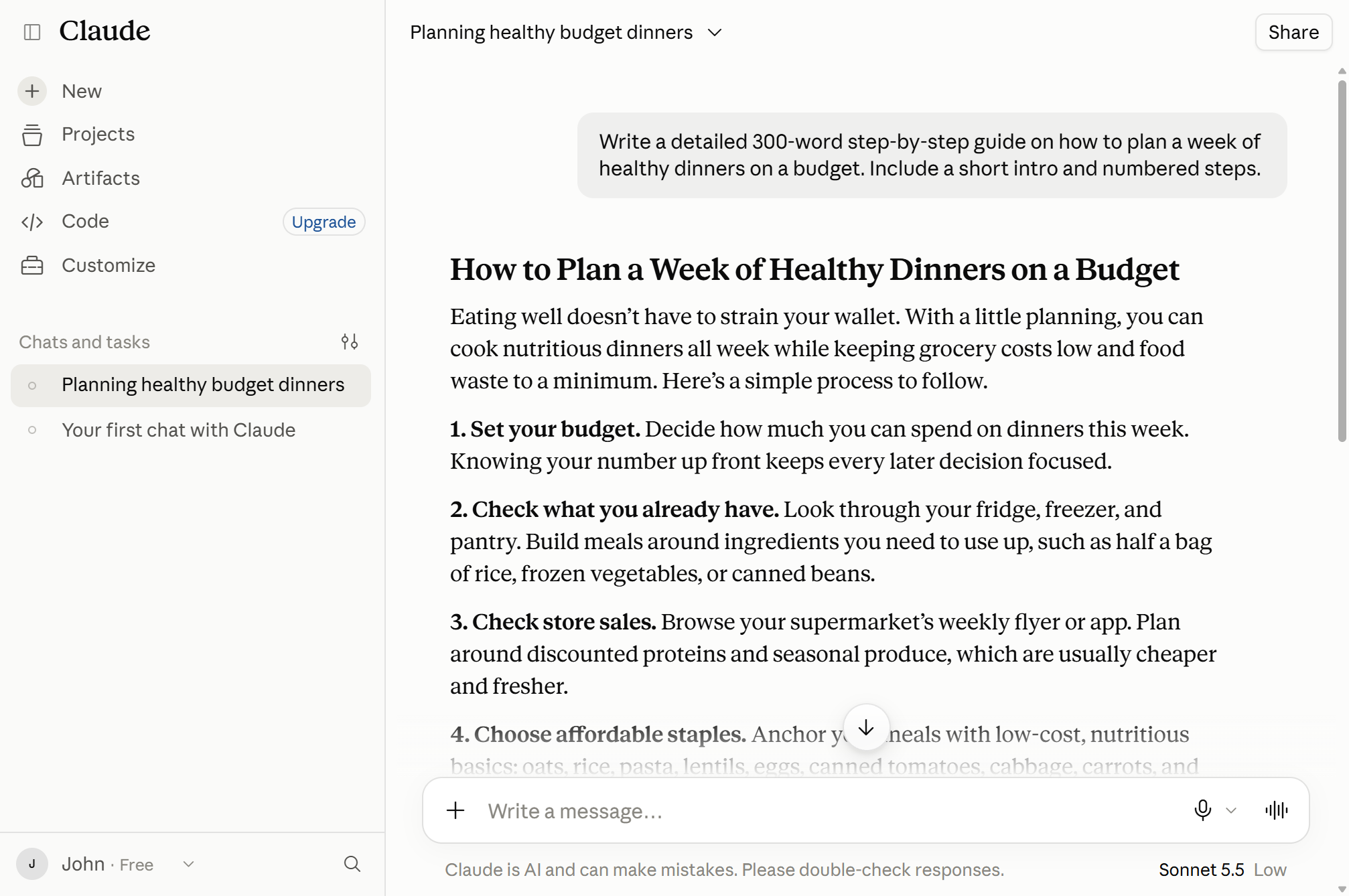
Your chats are listed in the sidebar, so you can reopen them later. Two privacy switches are worth knowing about before you paste anything personal: memory is on by default on Free, Pro, and Max, and an incognito chat leaves nothing in your history. Both are covered in article 5.
Troubleshooting: three things that trip up a first chat
- “My message will not send.” The usage limit is the usual cause. Open Settings > Usage to see where you stand and when the next reset lands. Article 6 explains how the limits work.
- “I cannot find the model name.” On web and desktop it sits below the text input, next to the send button. On mobile it moves to the top of the screen.
- “A button in a tutorial is called something else.” The product is mid-rename (Cowork is now just Claude), so older screenshots can differ from your screen.
Frequently asked questions
Does Claude on the web cost anything to start?
No. The free plan is genuinely usable: you can chat on the web, search the web, create files, and run code. Paid plans add features and more usage. Anthropic’s pricing page shows current prices for your region.
Do I need a password?
You sign in with a secure link that Anthropic emails you, or with your Google account, so there is no password to create or remember. Article 1 covers the full sign-in flow.
Can I change the model in the middle of a conversation?
Yes. The Help Center says you can change the model, effort, or thinking setting at any point, and the change applies starting with Claude’s next response.
Where do my old chats go?
They stay in the sidebar, where you can reopen them. An incognito chat is the exception: it is not saved to your history and cannot be reopened once closed.
What’s next
Your first conversation with Claude on the web is now a loop you can repeat: open a chat, write the prompt, read the reply, react. The next article in this series, How to write prompts that get better results from Claude, shows the three-part structure that turns a flat answer into a useful one, how to iterate, and how to fix answers that miss. New here? Start with What Claude is and how to create your account, or browse every part of the series on the Claude on the web: a beginner’s guide page.

John Lock
Liked this? There's more where it came from.
Get our digest — articles worth your time, no spam, unsubscribe in one click.
Subscribe to Factnetize →