⚡ Key takeaways
- OpenCode is a free, open-source AI coding agent with a desktop app for Windows.
- It currently ships with free models, such as DeepSeek V4.1 Flash Free and GLM-5.3-Flash Free. No API key and no card needed.
- The free models have usage limits. Use them up and you wait a day or pay $10 a month for OpenCode Go.
- Or you add a free NVIDIA API key, switch models, and simply carry on.
Paid AI coding tools cost $20 a month or more. Right now you can skip that. OpenCode, a free AI coding assistant, comes with a list of OpenCode free models that you pick from a menu and use straight away. I installed it on Windows 11, chose DeepSeek V4.1 Flash Free, and it ran smoothly from the first prompt. This guide shows you how to do the same in about 15 minutes, and how to keep going for free when your free usage runs out.
What OpenCode is, and why it’s free
OpenCode is an AI agent that works on your computer. You describe what you want, and it reads files, runs commands, reads the errors and fixes them. It is open source, and the app itself costs nothing.
An agent is only as good as the model behind it. Normally you pay for that model with an API key. However, the OpenCode team hosts a set of models under its own name, and several of them are free for a limited time. DeepSeek V4.1 Flash became free on 15 October 2026, and GLM-5.3-Flash followed a day later. No end date has been announced, and the line-up changes as new models arrive.
If you already followed our series on building your own agentic AI assistant, think of OpenCode as the coding-focused sibling: same idea, but built around a project folder.
Before you start
- A Windows 11 PC (x64). Most normal PCs are x64; only some thin laptops use ARM.
- About 15 minutes.
- A free NVIDIA developer account, for the backup in step 5. You can also do that part later.
You do not need a credit card, an API key or a paid AI plan.
Step 1: install OpenCode on Windows
- Go to opencode.ai/download (the official download page).
- Choose Windows x64. Don’t pick ARM64 on a normal PC: that build won’t start.
- Double-click the downloaded installer.
- Wait for the progress window to finish. OpenCode installs for your user only, so there is no admin prompt.
- OpenCode opens automatically.
Step 2: pick one of the OpenCode free models
- Open a folder as your project. Use a new, empty folder for your first test.
- Click the model name next to the prompt box. The model picker opens.
- Scroll to the OpenCode group. Every model with a Free label costs nothing.
- Click DeepSeek V4.1 Flash Free, or the newest DeepSeek Flash Free version you see.
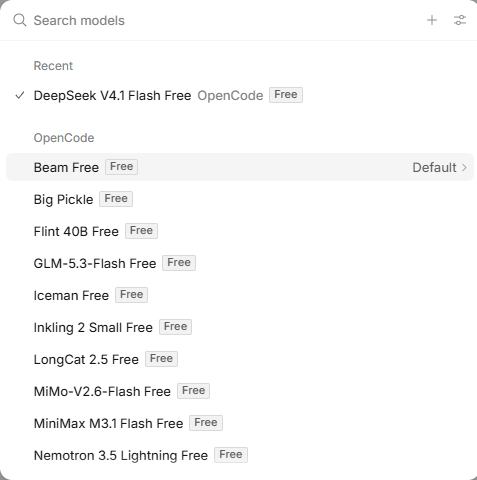
That’s it: OpenCode with DeepSeek, and there is no key to paste. The list changes over time, so you may see different names than in the screenshot.
Step 3: give it a first real task
Don’t start with “hello”. Give the agent something it has to build and test, so you see what it can do. Type this in the prompt box:
Create a small web page in this folder that converts euros to dollars.
Use one HTML file. Open it in my browser when you're done.
- Press Enter.
- Watch OpenCode write the file. When it wants to run a command, it asks for permission first.
- Approve the steps you understand. Decline anything you don’t.
- Check the result in your browser, and ask for changes in plain language (“make the button bigger”).
Read every permission prompt before you click Allow. The agent works on your real files.
Step 4: when a free model is busy, switch models
Free models get busy, slow down, or disappear when a promotion ends. You don’t need to start over. Your project and chat stay where they are; only the model changes.
- Open the model picker again.
- Choose GLM-5.3-Flash Free or MiniMax M3.1 Flash Free.
- Type “continue where you left off” and press Enter.
Not every free model is equal when it comes to your data. According to OpenCode’s own documentation, this is how they compare:
| Free model | Your data | Note |
|---|---|---|
| DeepSeek V4.1 Flash Free | Zero retention, not used for training | Best first choice |
| GLM-5.3-Flash Free | Zero retention, not used for training | Good fallback; can be slower |
| MiniMax M3.1 Flash Free | Zero retention, not used for training | Second fallback |
| LongCat 2.5 Free | Zero retention, not used for training | 100 requests a day; hosted in China |
| Beam Free | Not used for training, kept 30 days | Not available in every country |
| Big Pickle, Iceman, Flint, MiMo | May be used to improve the model | Avoid for private code |
| Nemotron (NVIDIA) | Use is logged; trial use only | No personal or confidential data |
In short: for anything personal or work-related, stick to the first three.
Step 5: free usage used up? Switch to NVIDIA and carry on
Switching between free models only helps for so long. The free models in OpenCode come with usage limits. Once you hit them, you have two options inside OpenCode: wait until the next day, or take out OpenCode Go at $10 a month.
There is a third option that costs nothing: connect a free NVIDIA API key and keep working. NVIDIA’s developer site hosts over 100 open models behind one free key, with no credit card. The free tier allows about 40 requests per minute, which is plenty for one person coding. Set it up now, and the next time OpenCode’s free usage runs dry, you switch models and don’t lose a minute.
Get your NVIDIA free API key
- Go to build.nvidia.com (NVIDIA’s model catalog).
- Sign up for a free NVIDIA developer account and confirm your email.
- Open your profile menu and choose API Keys.
- Click Generate API Key and give it a name, for example “opencode”.
- Copy the key (it starts with
nvapi-) and keep it somewhere safe. You only see it once.
Connect NVIDIA in OpenCode Desktop
- Open the model picker.
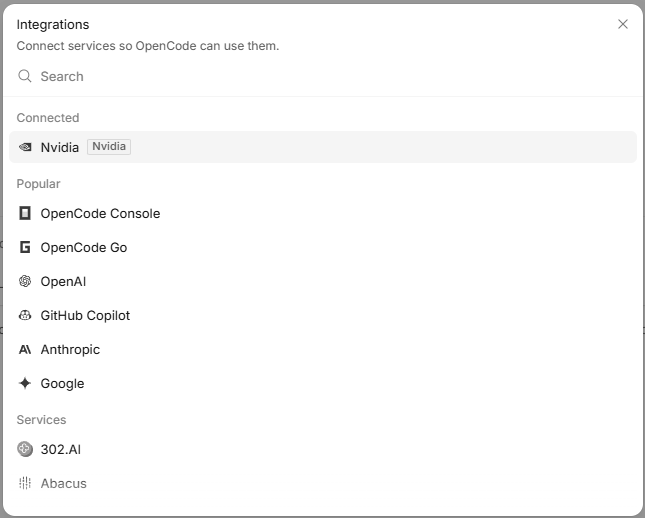
- Click the + at the top right of the picker. The Integrations window opens.
- Type nvidia in the search box.
- Click Nvidia.
- Paste your
nvapi-key and confirm. - Nvidia now appears under Connected. Close the window.
Pick an NVIDIA model
- Open the model picker again.
- Scroll to the new Nvidia group.
- Choose GLM 5.3 Flash, or type “glm” in the search box to find it fast.
- Type “continue where you left off” and press Enter.
NVIDIA’s free endpoints are meant for trying things out and building, not for confidential work. Keep personal data and company secrets out of them.
The limits of OpenCode free models
- Usage limits. Use up your free allowance and OpenCode asks you to wait or pay. That’s what the NVIDIA backup is for.
- Limited time. Free means free for now. Earlier free models in OpenCode have already been retired.
- Smaller context. The free DeepSeek and GLM versions are capped at 200K tokens of context, against 1M for the paid versions. Very large projects fill that up faster.
- OpenCode only. The free models refuse requests from other tools or scripts. You can’t plug them into another app.
- Busy hours. Shared free capacity slows down at peak times. Switching models is the quickest fix.
Troubleshooting
- The app won’t open after install. You probably downloaded the ARM64 build. Download the Windows x64 version again.
- A free model answers very slowly or not at all. It’s overloaded. Switch to another free model in the picker.
- OpenCode says your free usage is used up. Switch to your NVIDIA model (step 5) and continue.
- Nvidia doesn’t show up in the model picker. The key wasn’t saved. Click +, open Nvidia and paste the key again.
- Error 429 with NVIDIA. You hit the limit of about 40 requests per minute. Wait a minute and continue.
Frequently asked questions
Is OpenCode free?
Yes. The app is open source and free. The models tagged “Free” in the picker cost nothing too, within their usage limits and for a limited time. Paid models and OpenCode Go are optional.
How do I use DeepSeek for free?
Install OpenCode and pick DeepSeek V4.1 Flash Free in the model picker. That’s the easiest way to use DeepSeek free for coding: no account at DeepSeek, no API key, no card. It stays free for as long as OpenCode’s promotion runs.
Do I need an account or API key for the free models?
No. You choose a free model in the picker and start. You only need an API key for an extra provider, such as NVIDIA.
What happens when my free usage runs out?
OpenCode lets you wait until the next day or upgrade to OpenCode Go for $10 a month. With a free NVIDIA key connected, you skip both: pick an NVIDIA model and keep going.
Is my code safe with free models?
That depends on the model. DeepSeek V4.1 Flash Free, GLM-5.3-Flash Free and MiniMax M3.1 Flash Free don’t keep your data or train on it, according to OpenCode. Several other free models may use your input to improve the model, so keep private code away from those.
Conclusion
OpenCode free models give you a working AI coding agent on Windows without paying anything: install the app, pick DeepSeek Flash Free, and give it a real task. When a model is busy, switch to another free one. When your free usage runs out, switch to your free NVIDIA key instead of waiting a day or paying $10. Want an agent that does more than code, with memory, schedules and your own tools? Continue with building your own agentic AI assistant.

John Lock
The Tested Weekly
One email a week with the guides we tested, sources linked. No spam.