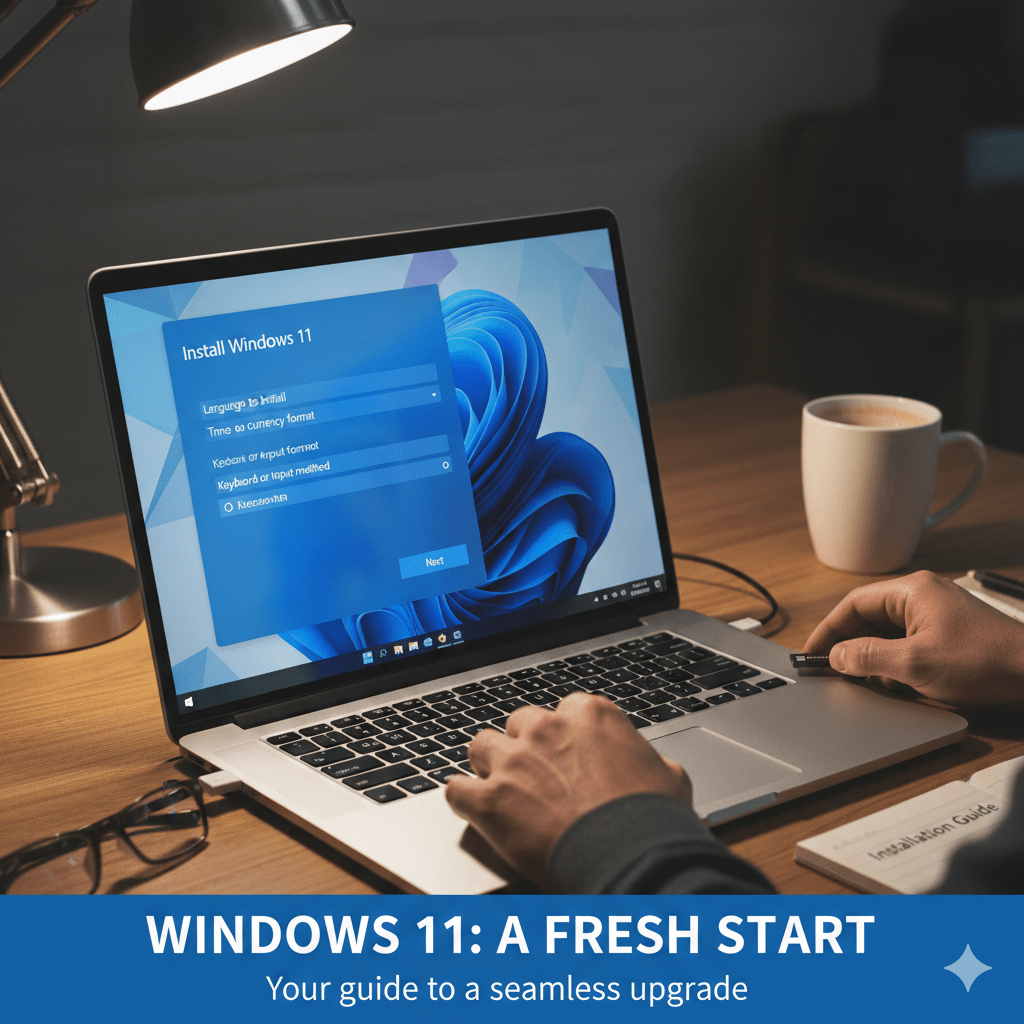
Important Disclaimer: Understand the Risks
Installing Windows 11 on unsupported hardware carries significant considerations:
- Security Vulnerabilities: TPM 2.0 provides hardware-based encryption and security features. Without it, your system may be more vulnerable to certain attacks.
- Limited Update Support: Microsoft may withhold feature updates or security patches for unsupported hardware configurations.
- Potential Compatibility Issues: Some Windows 11 features (like Bitlocker, Windows Hello facial recognition, and certain security features) may not function properly or at all without TPM 2.0.
- Licensing Implications: Running Windows 11 on unsupported hardware may technically violate Microsoft’s licensing terms, though enforcement is unlikely for personal use.
- Performance Considerations: Systems without TPM 2.0 are typically older and may struggle with Windows 11’s resource requirements.
Proceed only if you understand these risks, have verified your system meets baseline requirements, and have created a complete system backup.
Step 0: Verify Hardware Compatibility (BEFORE YOU START)
Critical: Windows 11 has minimum processor and architecture requirements beyond just TPM 2.0. Installing on incompatible processors will fail regardless of the Rufus workaround.
Check Processor Compatibility
Windows 11 requires:
- 1 GHz processor with 2 or more cores
- 64-bit processor with x64 instruction set support
- Processor must support NX (No-Execute) and DEP (Data Execution Prevention)
- UEFI firmware preferred (though BIOS may work in some cases)
To check your system:
- Go to Settings → System → About and note your processor name
- Search for your processor on Intel’s specification page or AMD’s specification page
- Verify it supports x64 instruction set and NX/DEP
Use Microsoft’s Official Tool:
- Download PC Health Check
- Run it to get a compatibility assessment
- Note: Even if it fails, you may still be able to install with the Rufus workaround, but the tool will identify real incompatibilities
Hardware Checklist:
- [ ] Processor: 1 GHz+, 2 cores, 64-bit x64, NX/DEP support
- [ ] RAM: 4 GB minimum (8 GB recommended)
- [ ] Storage: 64 GB SSD (HDD will work but much slower)
- [ ] Firmware: Check BIOS/UEFI type (UEFI preferred)
If your processor doesn’t support x64 instruction set, Windows 11 cannot be installed even with this workaround. Consider staying on Windows 10 in that case.
Step 1: Back Up Your System (Critical!)
Before attempting any Windows 11 installation on unsupported hardware, creating a full system backup is essential. If installation fails or causes problems, you’ll need to restore your system.
Option A: Using Macrium Reflect Free (Comprehensive)
- Download Macrium Reflect Free from the official website
- Install and launch the program
- Click Create an image of the partition(s) required to backup and restore Windows
- Select your system drive (usually C:) and all system partitions
- Select a destination with enough free space (external HDD or SSD recommended—at least equal to your C: drive size)
- Click Next and then Finish to start the backup
- Create a Macrium Rescue USB from the Other Tasks menu so you can restore your system if needed
Option B: Using Windows Built-in System Image (Simple)
- Press Win + S, search for “Create a system image” and open it
- Choose external drive as backup destination
- Select which drives to backup (select C: drive at minimum)
- Click Next and Start backup
Option C: Using AOMEI Backupper Free (User-Friendly)
- Download AOMEI Backupper Free
- Launch and click Backup → System Backup
- Select destination (external drive)
- Click Start Backup
Recommendation: Use at least one of these methods. Don’t skip this step—it’s your safety net.
Step 2: Download Windows 11 ISO from Microsoft
Get the official Windows 11 installation files directly from Microsoft:
- Visit the official Windows 11 download page
- Under Download Windows 11 Disk Image (ISO), select Windows 11 (multi-edition ISO) from the dropdown
- Choose your language and click Confirm
- Click the Download button and save the ISO file (approximately 6 GB) to your computer
- Verify the download completed fully before proceeding (file should be exactly 6+ GB)
Important: Always download Windows 11 from Microsoft’s official website to ensure you get a legitimate, virus-free copy. Never use third-party download sites.
Step 3: Prepare Your USB Drive
You’ll need a USB flash drive with at least 8 GB of storage space. All data on the USB will be erased during this process.
- Insert an empty USB drive (8 GB or larger) into your computer
- Open File Explorer and note the drive letter (e.g., D:, E:, etc.)
- Back up any important files from the USB drive to another location
- USB 3.0 drives are strongly recommended (installation will be significantly faster than USB 2.0)
Step 4: Create Bootable USB with Rufus (Bypass TPM 2.0)
Rufus is a free tool that creates a bootable Windows 11 USB drive and bypasses the TPM 2.0 requirement check.
What Rufus Actually Does
Rufus modifies the Windows installation image to remove the Registry-based hardware requirement checks. Specifically, it disables the checks that enforce:
- TPM 2.0 requirement
- Secure Boot requirement (optional, can remain enabled)
- 8 GB RAM requirement
- Specific processor requirements
This allows the installer to run on unsupported hardware, though your actual processor must still meet Windows 11’s baseline architecture requirements (x64, NX/DEP support).
Create the Bootable USB
- Download Rufus from the official website (use the portable version if you prefer)
- Run Rufus with administrator privileges (right-click → Run as administrator)
- In the Device dropdown, select your USB drive (verify the drive letter matches what you noted in Step 3)
- Click the SELECT button and choose the Windows 11 ISO file you downloaded in Step 2
- Under Image option, click the dropdown and select Windows User Experience (UX) options or Extended Windows 11 Installation (no TPM required)
- Verify settings: Partition scheme: GPT, Target system: UEFI, File system: NTFS
- Click START
- A dialog will ask you to confirm data erasure on the USB drive. Click OK to proceed
- Wait for Rufus to create the bootable USB
Step 5: Check Your BIOS/UEFI Settings
While Rufus bypasses the TPM 2.0 requirement during installation, understanding your system’s current BIOS/UEFI settings is helpful.
Access BIOS/UEFI Settings
- Restart your computer
- Press the BIOS/UEFI key repeatedly during startup (usually Del, F2, F10, or F12)
- Navigate to security-related sections to check TPM or Secure Boot status
Step 6: Install Windows 11 from the USB Drive
- Keep the Rufus-created USB drive plugged into your computer
- Restart your PC and enter the Boot Menu (usually F8, F11, or F12)
- Select your USB drive. The Windows 11 setup will load
- Follow on-screen instructions. Select Custom: Install Windows only (advanced) for a clean installation
- Choose the drive where you want to install Windows 11 and click Next
Step 7: Windows Activation
If you skipped entering a product key during installation, Windows 11 will operate with reduced functionality, such as a desktop watermark and restricted personalization options.
Step 8: Post-Installation Checklist
- Update Drivers: Visit your motherboard manufacturer’s website for chipset and network drivers.
- Check Device Manager: Look for warning triangles and update as needed.
- Complete Windows Update: Critical for security patches.
Troubleshooting Common Issues
Issue: “This PC can’t run Windows 11” Error
Solution: Recreate the Rufus USB drive and ensure “Windows UX options” were selected correctly.
Conclusion
Installing Windows 11 without TPM 2.0 is highly possible but remains an unsupported method. Always keep backups and be aware that future Microsoft updates might change how these systems are handled.
Useful Resources

Pablo Vicento
Liked this? There's more where it came from.
Get our digest — articles worth your time, no spam, unsubscribe in one click.
Subscribe to Factnetize →