
Your agent starts with a solid set of built-in tools. But sooner or later you want it to reach something specific — your GitHub issues, a database, a folder of files, an internal API. Writing a custom integration for each of those would be endless work. MCP is the answer to that problem, and once it clicks, your agent stops being a closed box and becomes something you can extend forever.
This one assumes you understand the basics of Hermes tools. MCP builds directly on that idea.
MCP in one paragraph
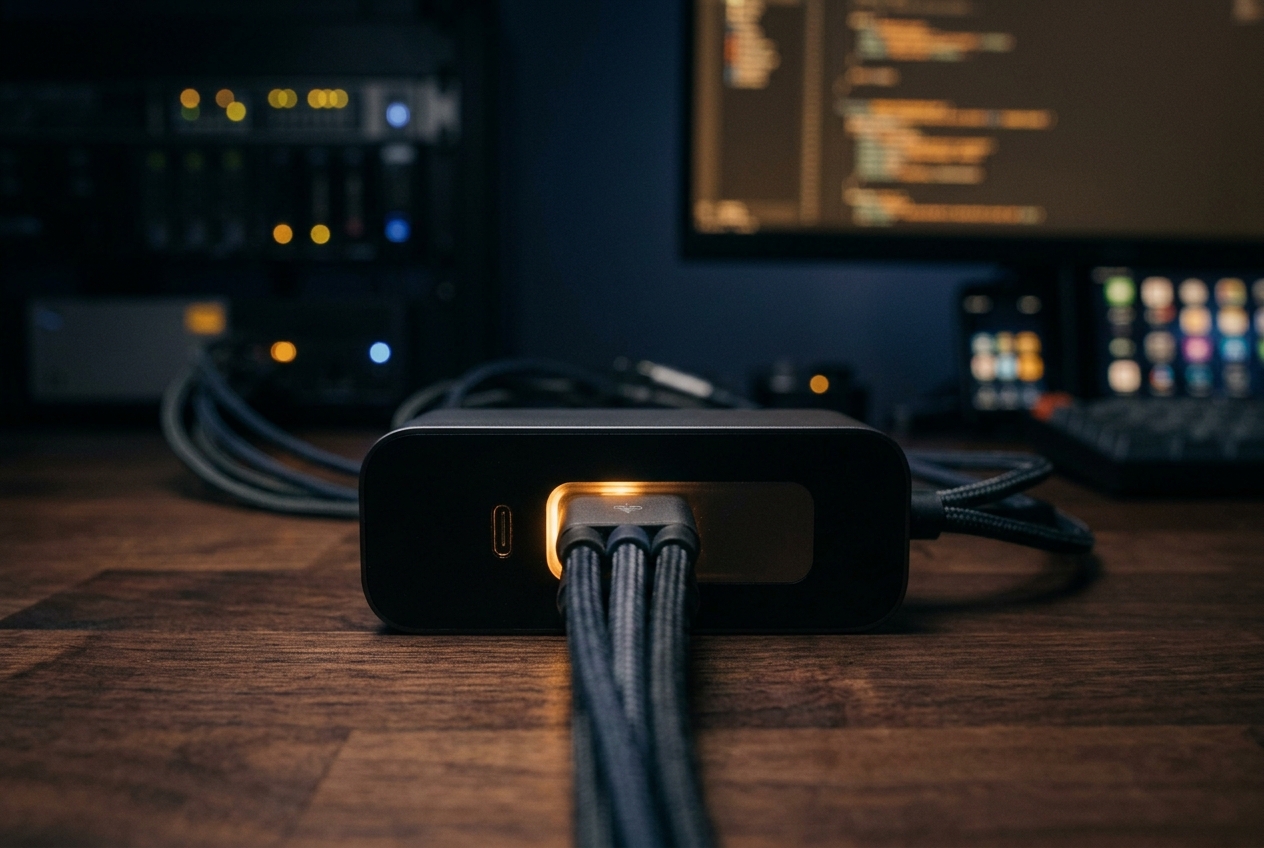
MCP — the Model Context Protocol — is an open standard for connecting AI applications to external systems. The official description puts it best: think of MCP like a USB-C port for AI. Just as USB-C gives you one standard connector for countless devices, MCP gives an agent one standard way to connect to outside data sources, tools, and workflows. Instead of a different custom cable for every integration, there is one plug. You can read the standard itself at modelcontextprotocol.io.
Why it matters
Before MCP, every AI tool integration was bespoke. With MCP, anyone can publish a server that exposes some capability — filesystem access, GitHub, Stripe, a company API — and any MCP-speaking agent can use it immediately. The tools that server offers show up in your agent as if they were native. That is the whole promise: write (or install) a server once, and every compatible agent gains those abilities.
The good news: Hermes speaks MCP out of the box
You do not install anything extra. MCP support ships with the standard Hermes install. Here is how it works:
- Hermes reads its MCP configuration from
~/.hermes/config.yaml, under anmcp_serverskey. - At startup, it connects to each configured server and discovers the tools it offers.
- Those tools are registered into the same tool registry as the built-ins — the agent does not treat them as second-class.
So adding an MCP server is really just adding a block to one config file and reloading.
Two ways to connect: stdio and HTTP
MCP servers reach Hermes over one of two transports, configured in the same file:
- stdio — a local subprocess Hermes launches, talking over standard input/output. Uses
command,args, and optionalenv. Best for local tools. - HTTP — a remote endpoint. Uses
urlandheaders. For hosted servers, there is also OAuth (auth: oauth) for services like Linear, Sentry, or Stripe.
Your first MCP server: filesystem
The canonical first server is the filesystem server, rooted to a single directory. Add this block to ~/.hermes/config.yaml:
mcp_servers:
  filesystem:
    command: "npx"
    args: ["-y", "@modelcontextprotocol/server-filesystem", "/home/user/projects"]
Reload the configuration from inside a chat with the slash command:
/reload-mcp
Then confirm the server is reachable and ask the agent to use it:
hermes mcp test filesystem
Now a prompt like “list the projects in my projects folder” is handled by the MCP server’s tools rather than the built-in file tools — scoped to exactly the directory you allowed.
The hermes mcp command family
You do not have to hand-edit YAML for everything. The hermes mcp commands manage servers directly:
hermes mcp                    # interactive catalog picker
hermes mcp catalog            # plain-text list of Nous-approved servers
hermes mcp install n8n        # install a catalog entry by name
hermes mcp add <name> ...      # add a custom server (--url / --command / --auth / --args)
hermes mcp list               # list configured servers (alias: ls)
hermes mcp test <name>         # test the connection
hermes mcp configure <name>   # toggle which tools are exposed
hermes mcp remove <name>       # remove a server (alias: rm)
One rule for add: --args must come last, because everything after it is passed straight to the command.
Connecting GitHub (it is not in the catalog)
A common surprise: there is no hermes mcp install github. GitHub is deliberately left out of the Nous-approved catalog, so you configure it by hand with a token in env:
mcp_servers:
  github:
    command: "npx"
    args: ["-y", "@modelcontextprotocol/server-github"]
    env:
      GITHUB_PERSONAL_ACCESS_TOKEN: "***"
Reload, and your GitHub tools appear alongside the rest.
The one habit that keeps you safe: allowlisting
An MCP server can expose a lot of tools, including destructive ones. The single most important habit is to allowlist what you actually want, using tools.include. You can also block specific tools with tools.exclude, and turn off a server’s prompts or resources:
mcp_servers:
  github:
    command: "npx"
    args: ["-y", "@modelcontextprotocol/server-github"]
    env:
      GITHUB_PERSONAL_ACCESS_TOKEN: "***"
    tools:
      include: [list_issues, create_issue, search_code]
      prompts: false
      resources: false
If both include and exclude are present, include wins. For anything financial, customer-facing, or irreversible, start with a tight allowlist and widen it only when you are sure.
A note on tool names
MCP tools appear with a prefixed name in the form mcp__<server>__<tool> — double underscores, matching the convention used by Claude Code and similar tools. So GitHub’s create-issue tool is mcp__github__create_issue. (You may spot a single-underscore form in one overview page; the double-underscore version is the authoritative one.)
When tools do not appear
Two quick fixes solve almost every “my new tools aren’t showing up” moment:
- Run
/reload-mcpafter editing the config — Hermes needs to re-read it. - Run
hermes mcp test <name>to confirm the server actually connects; a failed launch is the usual culprit.
A safe first week
Keep the on-ramp simple: add one server (filesystem), give it a narrow allowlist, test it, reload, and use it for a few real tasks before adding a second. Once you are comfortable consuming other people’s servers, the natural next step is building your own — and Hermes can even run as an MCP server itself with hermes mcp serve, but that is a story for a later article.
New to tools in general? Back up one step to Hermes tools 101.
With MCP, your agent can reach almost any external system — the point where it stops being a closed box. From here the series moves into more advanced ground: scraping sites that fight back, and delegating work to sub-agents. This article is part of the Agentic AI series.

John Lock
The Tested Weekly
One email a week with the guides we tested, sources linked. No spam.



The “universal plug” analogy makes MCP easy to grasp, especially alongside the practical focus on connecting a first server. I also appreciate that the article explains why Hermes supports MCP out of the box rather than treating it as just another AI buzzword.