⚡ Key takeaways
- Artifacts are work you can edit: documents, slide decks, and page designs that open beside the chat.
- Free includes Docs, Slides, and Design. You only need to turn on one setting.
- Start on the Artifacts page: click the Docs, Slides, or Design tile. Or ask for it in a normal chat.
- A download is a frozen copy; a shared link shows the living version.
Ask Claude for a flyer for your book club and you usually get a paragraph of tips. Ask for an artifact and you get the flyer itself: a page that opens next to the chat, which you can change, export as a PDF, or share by link. In this guide you make that page for a fictional neighborhood reading group, change it, turn the same facts into a document or a deck, and export it. Each step says exactly what to type and where to click.
Where everything is
These steps work in Claude Desktop and on claude.ai; the screens are the same. You only need four places:
- Settings: click your initials in the lower left corner, then Settings. You go here once, in Step 1.
- The message box: the field in the middle of a new chat that says “How can I help you today?”. You ask for the artifact here, in plain words.
- The canvas: the panel that opens on the right side of the chat once Claude makes the artifact. That is your artifact.
- The Artifacts tab: in the sidebar on the left. Under Make something new it has a tile for Docs, Slides, and Design, and below that it lists everything you’ve made, so you can find it again.
Some layouts also show an Output button in the message box. That is a shortcut. If you don’t see it, you don’t need it: every step below works by typing.
Which artifact should you ask for?
Anthropic’s artifacts lesson names three main types. Pick the one that fits how people will use the result:
- Docs: a written document people read carefully, such as a project brief.
- Slides: a deck you present or walk someone through.
- Design: a page people scan, such as a flyer, landing page, or app screen.
This guide starts with a Design, because that is the one you see change most clearly. Docs and Slides follow the same pattern.
Step 1: Turn on file creation
Without this setting, Claude can’t make artifacts. According to the artifacts overview, it works on every plan, including Free.
- Click your initials in the lower left corner.
- Click Settings.
- Open Capabilities.
- Turn on Create and edit files. In the older layout it is called Cloud code execution and file creation.
- Close Settings.
On a work account you may not see this switch; then your admin controls it.
Step 2: Start a design
The easiest route is the Artifacts page, which has a tile for each type.
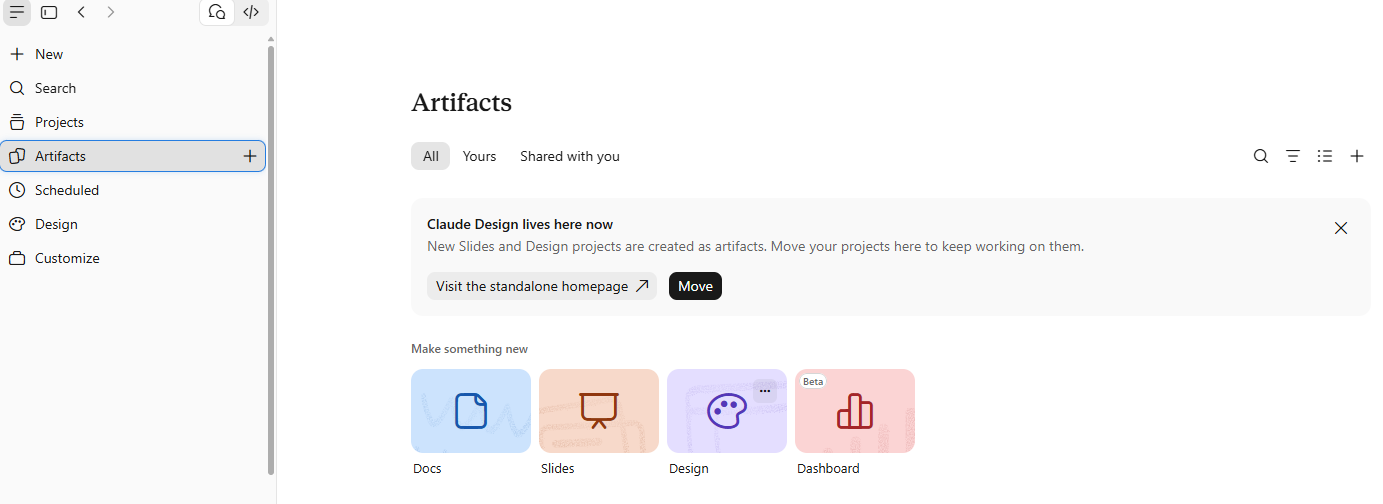
- Click Artifacts in the sidebar on the left.
- Under Make something new, click the Design tile.
- Paste the request below and press Enter.
- Answer Claude’s questions; say “To confirm” for anything you don’t know yet.
- Wait until the design appears on the canvas.
Create a Claude Design artifact: a simple landing page for a neighborhood reading group. Audience: adult neighbors. Include a welcome section, a 45-minute discussion overview, and a book-suggestion section. Date, time, location, and book must say "To confirm". Use a readable navy-and-amber layout with generous spacing. No sign-up form.
Check: you now see a page with a welcome section, an overview, and a book section, and every open detail says “To confirm”.
Rather stay in a normal chat? That works too:
- Start a new conversation.
- Click in the message box, where it says “How can I help you today?”.
- Paste the same request and press Enter.
Because the request starts with “Create a Claude Design artifact”, Claude knows what to make and opens the canvas on the right.
The request names the goal, the audience, the sections, the facts, and the look. That is the pattern to reuse for your own pages.
Step 3: Change something yourself
For small layout changes you don’t need Claude. The Design guide says you can move and resize elements directly on the canvas.
- Click the welcome heading on the canvas.
- Drag it a little lower, or drag a corner to make it bigger.
- Press Ctrl+\ to open the properties panel if you want to set sizes and spacing exactly.
Check: the heading moved, and the rest of the page stayed the same.
Step 4: Ask Claude for a change
For a change to one element, leave a comment on that spot:
- Click the welcome heading on the canvas.
- Type your request in the comment box that appears, for example: “Add more space below this heading.”
- Send it and wait for the canvas to update.
If nothing changes, the comment wasn’t picked up. Type the same request in the chat instead; the Design guide gives the same advice.
For a change that touches several sections, use the chat:
- Click in the message box below the conversation.
- Send: “Move the book-suggestion section above the discussion overview. Keep the event details unchanged.”
- Wait for the canvas to update.
Check: the book section is now above the overview, and every detail still says “To confirm”. Make the window narrower once: the page should stay readable on a small screen.
From my own use
This site’s current look started as a redesign made with another AI tool, because Claude Design didn’t exist yet. I finished it in Claude Design, one change at a time: describe it, check the canvas, adjust with a comment or a chat message. Had Design been around at the start, I’d have begun there.
Step 5: Turn the same facts into a doc or a deck
A landing page invites people in; a brief helps the organizers plan; slides support a short spoken update. Stay in the same chat, so Claude reuses the same facts. Starting from scratch instead? Click Artifacts in the sidebar and pick the Docs or Slides tile.
For a document:
- Click in the message box below the conversation.
- Paste the request below and press Enter.
- Wait until the document opens on the right.
Create a Claude Docs artifact: using the same facts, a one-page planning brief with three headings: Purpose, Confirmed facts, and To confirm.
To change the document, click into it and type; it saves by itself. To ask Claude for a change in one spot, the Docs guide describes it like this:
- Select the text you want changed.
- Press Ctrl+Alt+M to open the comment box.
- Type @Claude and your request.
- Press Enter. Claude replies in the comment and makes the change.
For a deck:
- Click in the message box below the conversation.
- Paste the request below and press Enter.
- Click through every slide on the right.
Create a Claude Slides artifact: turn the same brief into three slides: purpose, meeting outline, and decisions still needed.
Check: no text runs off a slide, and Claude added no details that weren’t in your facts.
Step 6: Find your work again
- Click Artifacts in the sidebar on the left.
- Click the design, document, or deck you want.
- Keep editing it, as in Steps 3 and 4.
Step 7: Export a copy
- Open the artifact.
- Click Export in the upper right corner.
- Pick a format.
- Open the downloaded file and compare it with the artifact.
Which formats you get depends on the type:
- Design: PDF, PowerPoint, standalone HTML, or a .zip file.
- Docs: Word, PDF, Markdown, or Google Docs.
- Slides: PowerPoint, PDF, or Google Slides.
A download does not change when you edit the artifact later. Export again after each change.
Step 8: Share the living version
Artifacts start private, so nobody sees them until you share. Sharing works in Claude Desktop and on claude.ai, not in the phone app.
- Open the artifact.
- Click Share.
- Choose what people may do: view, comment, or edit.
- Copy the link and send it.
Unlike a download, the link always shows the latest version.
Frequently asked questions
I don’t see an Output button. Is something wrong?
No. Many layouts don’t show it. Start your message with “Create a Claude Design artifact”, “Create a Claude Docs artifact”, or “Create a Claude Slides artifact”, or pick a template from the Artifacts tab in the sidebar.
Claude answered with text instead of opening a canvas. What now?
Check Step 1 first: without Create and edit files, Claude can’t make artifacts. If the setting is on, reply “Make this a Claude Design artifact” and it opens on the right.
Is Design the same as an image generator?
No. Design builds layouts and page prototypes you can edit, not a single picture.
Does a design become a working website?
No. Buttons on a design don’t send email or store sign-ups. It is a prototype; turning it into a real site takes development work, for example with Claude Code.
Next: Claude Skills, which lets Claude repeat a procedure you explain once. This is part 3 of Claude beyond the basics; the beginner series covers prompts and uploads.

John Lock
The Tested Weekly
One email a week with the guides we tested, sources linked. No spam.